In HTML Editor Online, Ctrl+S (Cmd+S on a Mac) saves your current draft in browser storage. It does not download an HTML or JSON file. If you want a file on disk, use the Download control. That is the short answer to the ctrl s browser code editor save or download file question, and it covers the WYSIWYG HTML Editor, the HTML Code editor and the JSON editor. Other websites and apps may treat the shortcut differently, so read this as editor-specific behavior, not a rule for every browser or site.
Below I explain the timing differences between the editors, where a local draft actually lives, and a short routine for keeping a copy you can back up.
Table of Contents
Ctrl+S in a Browser Code Editor: Save or Download a File?
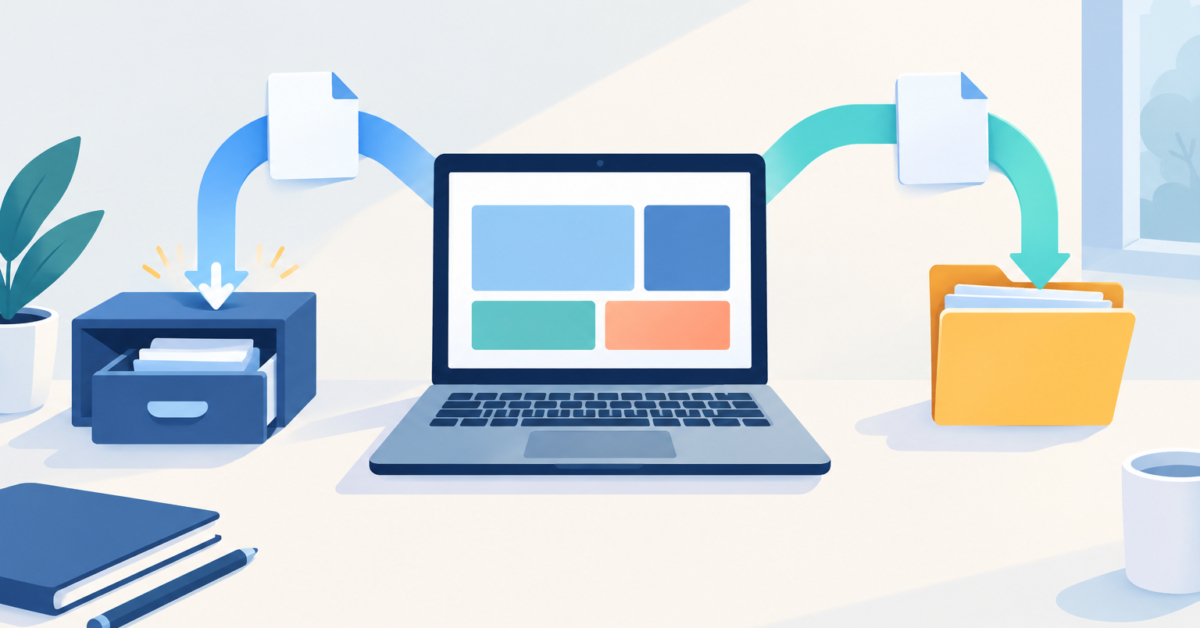
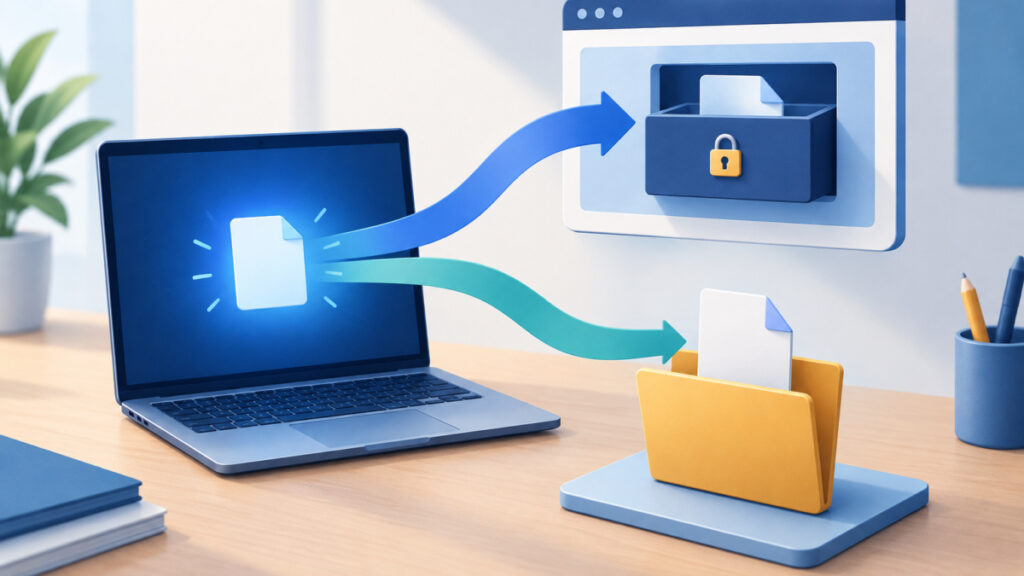
In a desktop text editor, Ctrl+S writes a file. In these browser editors it writes your draft into storage that the browser keeps for the site. Nothing lands in your Downloads folder, and no .html or .json file is created.
A Download control does a different job. It builds a file from the current content and hands it to the browser, which stores it wherever your download settings point. Only that file is something you can attach to a message, commit to a repository or copy to another computer.
| Question | Ctrl+S or Cmd+S | Download control |
|---|---|---|
| What it does | Saves the current draft in browser storage | Creates a file you can keep |
| Where the result lives | Inside the browser, for this site | In your downloads location |
| Counts as a backup | No | Yes, once you store the file somewhere safe |
| Changes an imported original | No | No |
The working rule is simple. Press the shortcut when you want an immediate local draft save. Use Download when you want a copy that exists outside the page. The shortcut never replaces the second step.

Autosave Timing and Download Controls in Each Editor
The editors do not share one autosave interval, so do not assume the code editors behave like the visual one. Here is what the site documents for each.
- Visual editor (homepage): it saves a local copy about one second after you stop typing, and Ctrl+S saves immediately. It offers HTML, TXT and Word download choices. Download HTML exports a content fragment named content.html, not a complete page with a doctype, head and body. The Word choice is an HTML-based .doc file, not a .docx document.
- HTML Code Editor: it saves automatically every two minutes, and Ctrl+S saves at once. It has a separate Download control, a sandboxed live preview and no validator.
- JSON Editor: it saves automatically every two minutes and has its own Download control. The Ctrl+S behavior for this editor comes from the site’s own description rather than from the public page text I could retrieve, so confirm it once in your browser. The editor checks syntax with JSON.parse and offers no tree view or JSON Schema validation.
The two-minute interval has a practical consequence. Based on the documented timing, edits made since the last timer tick may not be stored until you press Ctrl+S. If you have just made a change you would hate to redo, press the shortcut instead of waiting.
I have not run a fresh shortcut test for this article, so this section reflects the documented behavior. A quick check in your own browser is cheap: press the shortcut, reload the page and see whether the draft comes back.
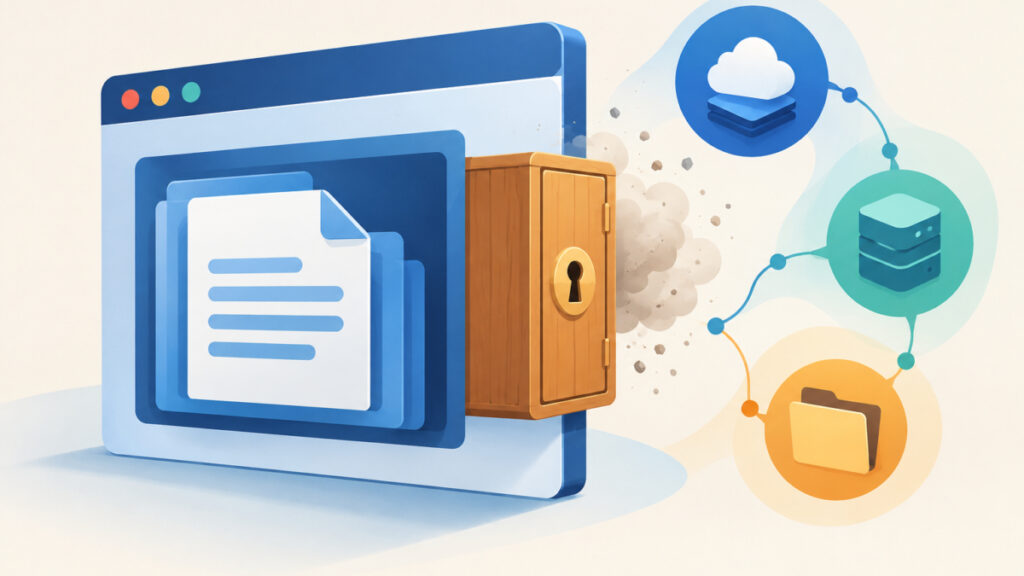
Where a Local Draft Lives and Why It Is Not a Backup
A browser draft is kept with localStorage, a key-value store tied to the site’s origin. It normally persists across page reloads and browser sessions on the same browser profile. That convenience is real, but it is not the same as a file you control.
- Clearing site data can remove it. If you wipe cookies and site data for the site, the draft can go with them.
- Private browsing is temporary. Storage in a private window is cleared when the private session ends.
- Storage can fail. It may be unavailable in some settings, or an extremely large draft may exceed the quota the browser allows. MDN describes this in its storage quotas and eviction criteria page.
- It stays in one browser. A draft saved in one browser or profile is not something another browser or device can see.
For all of these reasons, a successful local save should be read as a convenience for resuming work, not a promise that every edit is recoverable. I would not describe it as syncing or as a backup, and the site does not document either.
If you write markup for newsletters, the walkthrough on saving and exporting email markup covers the same idea from the email side: keep a real file copy of anything you cannot afford to lose.
Ctrl+S Browser Code Editor Save or Download File: Steps to Keep a Copy
Use this sequence whenever the content matters.
- Edit your content in the visual, HTML Code or JSON editor.
- Press Ctrl+S (Cmd+S on a Mac) if you want an immediate local draft save.
- Click Download HTML in the visual editor, or Download in the HTML Code or JSON editor, when you want a separate copy.
- Find the downloaded file in your browser’s downloads location and move it to a folder you back up.
- Rename it with a date or version so a later download does not overwrite your memory of which copy is which.
Remember what the visual editor’s Download HTML gives you: a fragment, not a page. A file like content.html contains only the body-level markup you wrote, for example:
<h2>Release notes</h2>
<p>Fixed the sample form label.</p>
If you need a standalone page, add the wrapper yourself and paste the fragment inside the body element:
<!doctype html>
<html lang="en">
<head>
  <meta charset="utf-8">
  <meta name="viewport" content="width=device-width, initial-scale=1">
  <title>Release notes</title>
</head>
<body>
  <h2>Release notes</h2>
  <p>Fixed the sample form label.</p>
</body>
</html>
This works because a download is just the editor’s current content written to a file. The browser does not know whether you meant a fragment or a document, so supplying the doctype, head and body is your job.
How to Verify the Download Before You Trust It
A download proves only that a file was created. Check what is inside before you delete the draft or send the file on.
- Open it. Open the file in a plain text viewer to confirm the content is the version you expect, and open an HTML file in a browser to see how it renders.
- Check JSON syntax. Paste a downloaded JSON file into the JSON Validator to confirm it parses. That check covers strict syntax only, not whether the data matches an application schema.
- Watch large numbers. JSON.parse can round very large integers, so keep long identifiers as strings in your source.
- Confirm the file type. A Word download from the visual editor is an HTML-based .doc, so some tools may not treat it as a native .docx document.
- Do not expect an overwrite. Downloading does not update a file you imported earlier. The new file is a separate copy.
For more on editing and checking JSON in the browser, read the guide to editing JSON in the browser. It pairs well with the routine above: save locally while you work, download when a stage is done, then validate the downloaded copy.
Frequently asked questions
Does Cmd+S work the same way as Ctrl+S on a Mac?
Yes. The editors document Ctrl+S, with Cmd+S as the Mac equivalent. Both save the current draft in browser storage and neither downloads a file.
If I reopen the editor in the same browser, will my draft still be there?
Usually, if the draft was saved, you are in the same browser profile and site data has not been cleared. Browser storage can be unavailable or full, so I would not treat it as guaranteed. Download a copy for anything important.
Does private browsing keep my draft?
Storage in a private window is cleared when the private session ends, so the draft will not be there afterwards. Download a file before you close the window.
What happens to my draft if I clear site data?
The local draft can be removed because it lives in the browser’s storage for the site. Files you already downloaded are unaffected, which is why a downloaded copy works as a real backup.
Does Download update the HTML or JSON file I imported?
No. Download creates a new file from the current editor content. Your original file stays unchanged, so rename the new copy clearly to avoid mixing versions.
Is Download HTML in the visual editor a complete web page?
No. It exports a content fragment as content.html, without a doctype, head or body. Add that wrapper yourself if you need a standalone page.
Do my drafts sync between devices?
The site does not document syncing. A local draft is tied to one browser on one device, so use a downloaded file when you need the content somewhere else.
Next steps
The ctrl s browser code editor save or download file question comes down to one rule. Ctrl+S saves a local draft in the browser, and Download creates a file you can keep. Use the shortcut to protect your work between sessions, then download and store a copy whenever the content matters. Your next step: open the editor you use, press Ctrl+S, click the Download control, and confirm the file appears in your downloads folder before you rely on it.
Related tools and resources on HTML Editor Online:
- WYSIWYG HTML Editor
- HTML Code Editor
- JSON Editor
- HTML Email Editor in the Browser: Draft, Save and Export Markup Safely
- Online JSON Editor: The Complete Guide to Editing JSON in Your Browser