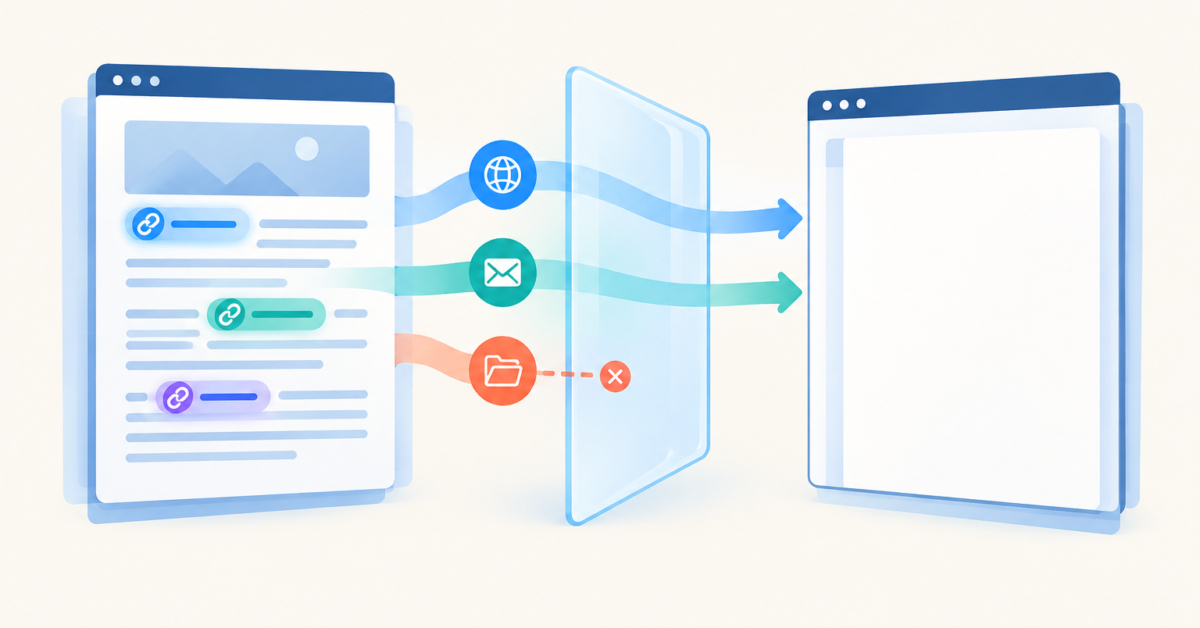
If you paste converted Markdown into Word and a link such as [Guide](docs/guide.md) shows only the word “Guide” with nothing behind it, the destination was most likely lost during conversion rather than by Word. This is the usual cause of relative Markdown links lost when copying rich text to Word: a repository-relative path only means something next to the file that contains it. The Markdown to Rich Text tool, according to its page checked on October 7, 2026, removes relative link destinations and keeps only absolute HTTP, HTTPS and mailto destinations. The fix is to replace each relative path with a complete address before you convert, then test every link in Word.
Table of Contents
Why Are Relative Markdown Links Lost When Copying Rich Text to Word?
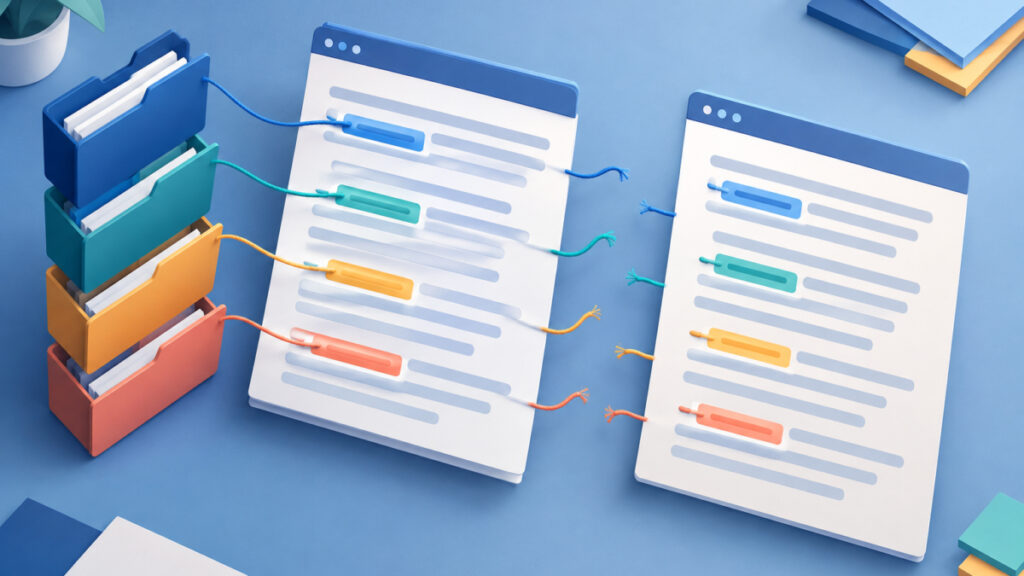
A Markdown link has two parts: the visible text in square brackets and the destination in parentheses. When the destination is a repository path such as docs/CONTRIBUTING.md, it only means something relative to a location. GitHub’s documentation on basic writing and formatting syntax says it resolves such paths relative to the current file and transforms them for the current branch. A path that begins with / is relative to the repository root. The link works because the page is rendered inside that repository.
Here is a fictitious README excerpt that mixes context-dependent destinations with self-contained ones:
See the [contribution guidelines](docs/CONTRIBUTING.md).
Read the [parent guide](../guide.md).
Jump to the [install section](#install).
Open the [public guide](https://example.com/guide).
Email the [docs team](mailto:[email protected]).
The first three destinations depend on where the document lives. The last two carry everything a reader needs. RFC 3986 (January 2005) defines resolving a relative reference against a base URI and warns that, apart from fragment-only references, reliable use requires a well-defined base. The GitHub Flavored Markdown specification (version 0.29-gfm, April 6, 2019) shows Markdown links rendering with relative href values, so the syntax itself is fine.
The trouble starts when the words leave the repository. A standalone Word file has no repository, branch or folder tree behind it, and no specification requires a Markdown-to-Word converter to carry relative destinations across.

How Link Text Survives Without a Destination
Seeing the words remain while the destination disappears can feel contradictory, but the two parts are separable. A converter can keep the displayed text and discard the target. In HTML terms, the WHATWG HTML Standard says an a element with an href attribute represents a hyperlink, while an a element without one is only a placeholder around its contents. I have not inspected the exact HTML this converter generates, so treat that as the general model rather than a description of its internals.
What I can state from the tool page is the policy: relative destinations are removed, and absolute HTTP, HTTPS and mailto destinations are retained. In this workflow the result looks like this:
Markdown input:   [Guide](docs/guide.md)
Rich text result: Guide   (visible text, no working destination)
That before and after is illustrative. It shows the effect you should expect to see in Word, not a captured output. This is also why a quick glance is misleading. If the text is still there, you may assume the link is there too, and the mistake only surfaces when a reader clicks nothing.
Word itself is not the villain here. Microsoft documents how to create or edit a hyperlink, including links to other places, so Word can hold hyperlinks. The destination has to reach it first.

Which Link Destinations the Converter Keeps
The comparison below summarizes what the Markdown to Rich Text page documents, plus one case where it makes no promise. Use it to sort the links in your own document before converting.
| Markdown destination | Kind | Expected in this tool |
|---|---|---|
docs/guide.md | Relative path | Text stays, destination removed |
../guide.md | Relative path | Text stays, destination removed |
#section | Same-document fragment | Not promised; test it |
https://example.com/guide | Absolute HTTPS | Retained |
http://example.com/guide | Absolute HTTP | Retained |
mailto:[email protected] | Email address | Retained |
The #section row needs careful wording. Under URL rules a fragment-only reference points inside the same document, which is why RFC 3986 treats it as the exception to the base-URI problem. The tool’s stated policy, however, is to retain absolute destinations, and it does not promise to keep fragments. Do not assume an in-page jump survives, and do not assume it fails. Convert a sample and check.
Two practical notes follow. First, an absolute link is only as good as its target: a link to a file on a changing branch can point at different content later, and a private address is useless to readers without access. Second, the tool page mentions browser-side processing and no saved drafts, so keep your Markdown source. The destinations you remove from the converted copy are not recoverable from the pasted result.
Fixing Relative Markdown Links Lost When Copying Rich Text to Word
The reliable approach is to make every link self-contained before you convert. Here is the sequence I would follow.
- List every link in the source. A plain search is enough to start:
grep -n '](' docs/guide.mdprints each line containing a link, and you then review the destinations by eye. - Pick out every destination that does not begin with
https://,http://ormailto:, including paths such asdocs/guide.md,../guide.mdand/docs/guide.md. - Replace each one with a verified, complete HTTP or HTTPS address that readers of the standalone document can open. Confirm that it points at the intended file and revision and that recipients have access.
- Paste the edited Markdown into the converter and press Convert. You can also import a Markdown file instead of pasting.
- Press Copy Rich Text, then paste into Word.
- In Word, inspect each hyperlink’s destination, then follow it. Blue, underlined styling alone does not prove a link works.
After step 3, the earlier excerpt would look like this:
See the [contribution guidelines](https://example.com/project/docs/CONTRIBUTING.md).
Read the [parent guide](https://example.com/project/guide.md).
Open the [public guide](https://example.com/guide).
The method works because it removes the dependency on a base location. An absolute address resolves the same way wherever the document is opened. If you want a second opinion on how your Markdown is interpreted, paste the same text into the Markdown to HTML converter, which uses the marked library for GitHub-flavored Markdown, and look at what the link destinations become. Keep in mind that Markdown to HTML may retain raw HTML, so sanitize that output before rendering anything untrusted on a public page.
If a particular link cannot have a public address, leave it as text and add the hyperlink by hand in Word after pasting.
Conversion Loss or Paste Behavior? How to Tell
Two different things can leave you with unlinked text, and they need different fixes. Separate them before changing anything.
- Relative destination removed during conversion. If the dead link was a repository path, this is expected behavior for this tool. Fix the source Markdown as described above.
- Absolute link missing after paste. If an
https://ormailto:link also arrives as plain words, look at the paste step. Microsoft documents controlling the formatting when you paste text, including options that keep source formatting and a Keep Text Only option, and notes that the destination application controls what formatting is kept. Choose a formatting-preserving paste and try again. - Wrong copy button. Copy Plain Text is intended for text without rich formatting, so do not expect clickable hyperlinks from it. Use Copy Rich Text when links matter.
- Download instead of paste. The Word download is an HTML-based
.docfile, not a.docx. Apply the same inspection to any links in it.
A quick diagnostic is to put one relative link and one absolute HTTPS link in a three-line test document and convert it. If only the absolute link arrives, you are seeing the documented relative-destination filter. If neither arrives, suspect the paste option or the copy button. If both arrive, the original problem was in your source links.
Also remember that a successful conversion proves only that conversion ran. It does not prove the addresses are correct, current or reachable, and it does not check access permissions. Those checks are manual: follow each link after pasting.
Limits and Neighboring Tools
The converter handles Markdown in its documented subset and produces a sanitized formatted preview with tables and nested lists. It does not check whether a URL resolves, it does not rewrite relative paths for you, and it does not produce a .docx. It also does not store drafts, so your source file remains the place to fix links.
If you work in the other direction, the HTML to Markdown converter turns HTML into Markdown for documentation and notes. Round trips can lose context for the same reason discussed here, so recheck destinations after each pass. If you are preparing prompts rather than documentation, the AI Prompt Markdown Editor formats a prompt visually and converts it to Markdown, and it supports Word import. I cover that workflow in my guide to writing structured prompts.
For a team habit that prevents this problem, keep two versions of link policy in mind. Repository docs can use relative links because GitHub resolves them in context. Any document that will leave the repository, such as a Word handout or an emailed report, should use absolute addresses, checked before conversion. Writing them as absolute links from the start costs little and removes a whole class of silent failures.
Frequently asked questions
Does Word strip relative Markdown links when I paste?
For this workflow, the destination is most likely removed earlier, during conversion in the Markdown to Rich Text tool, which documents that it removes relative link destinations. Word can hold hyperlinks, so test an absolute link as a control to confirm.
Will absolute HTTPS links survive the conversion?
The tool page states that absolute HTTP, HTTPS and mailto destinations are retained. Still, check each link in Word after pasting, because the paste option you choose also affects whether formatting such as hyperlinks is kept.
What happens to same-page links like #section?
Under URL rules, a fragment-only reference points inside the same document. The tool’s documented policy is to keep absolute destinations and it does not promise to retain fragments, so convert a sample and test the result before relying on it.
Can I keep relative links if the Word file sits next to the other files?
Microsoft documents ways to create file links, but a relative path then depends on where the document is stored and opened. For a file that will be emailed or moved, absolute addresses are safer, and you should test them either way.
Does Copy Plain Text keep any links?
Copy Plain Text is meant for text without rich formatting, so you should not expect clickable hyperlinks from it. Use Copy Rich Text when you need links, then inspect them in Word.
Is the Word download a .docx file?
No. The tool’s Word download is an HTML-based .doc file, not a .docx. Apply the same link inspection to it, and keep your Markdown source for later edits.
Does the converter verify that my replacement URLs work?
The tool page does not describe any link checking. After replacing relative paths, confirm that each address points at the intended file and revision, and that your readers have permission to open it.
Next steps
Relative Markdown links lost when copying rich text to Word are a context problem, not a mystery. A path like docs/guide.md needs the repository that GitHub supplies, and this tool’s documented policy keeps only absolute HTTP, HTTPS and mailto destinations. Before your next conversion, search your Markdown for links, replace each relative destination with a complete address readers can open, convert, paste with a formatting-preserving option and follow every link in Word. Keep the original Markdown so you can repeat the process after edits.
Related tools and resources on HTML Editor Online:
- Markdown to Rich Text
- Markdown to HTML
- HTML to Markdown
- AI Prompt Markdown Editor: How to Write Structured Prompts That Get Better AI Results
Sources and further reading
- https://github.github.com/gfm/?source=post_page—–d981ed7f8bfb———————-
- https://docs.github.com/en/get-started/writing-on-github/getting-started-with-writing-and-formatting-on-github/basic-writing-and-formatting-syntax
- https://support.microsoft.com/en-us/word/control-the-formatting-when-you-paste-text
- https://support.microsoft.com/en-us/word/create-or-edit-a-hyperlink
- https://www.rfc-editor.org/rfc/rfc3986.html
- https://html.spec.whatwg.org/dev/text-level-semantics.html
- https://html-editor-online.com/tools/markdown_to_rich_text