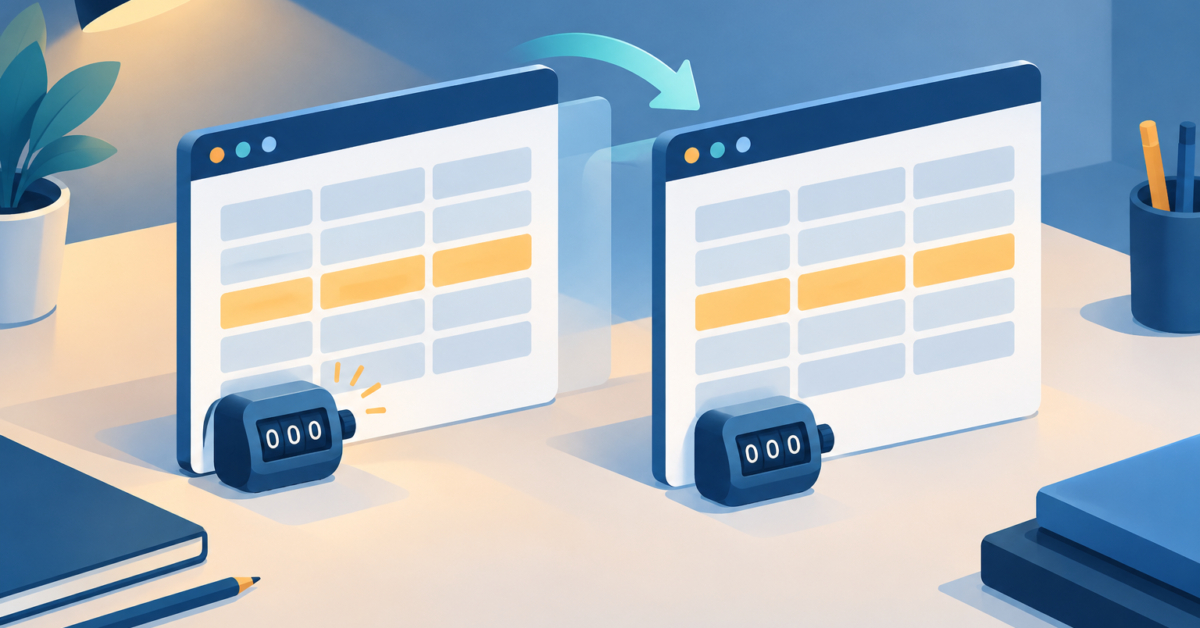
If your counter drops back to Count: 0 after you edit the page, nothing is necessarily broken. In the HTML Code Editor, the live preview is rebuilt about half a second after typing stops, so HTML live preview JavaScript state resets after typing by design. A variable such as count lives only inside the current preview document, and that document is replaced on each refresh. This guide uses a tiny button-and-counter page to show the reset, separate it from a real script error, and explain why localStorage is not a workaround inside this preview.
Table of Contents

Why the preview restarts your script
The HTML Code Editor sends your edited markup to its preview through an iframe’s srcdoc attribute. About half a second after you stop typing, the preview refreshes with the new source. Changing srcdoc is not like patching a few nodes in place. The HTML Standard section on iframe elements describes it as processing the iframe’s attributes, which navigates the frame to a new document whose URL is about:srcdoc. The old document is discarded together with its variables, timers and event listeners, and your script runs from its first line again in the new one.
A counter written as let count = 0 is memory that belongs to one document. Clicking the button changes the memory of the document currently on screen. Editing the source replaces that document, so the variable is created again with its initial value. That makes the reset expected preview behavior and not, by itself, evidence of a code error.
I checked the editor’s product page on November 14, 2026, and this explanation covers that editor only. I am not claiming that every live preview, browser or deployed page resets on every edit. A separately hosted application decides for itself how and whether to keep state. The MDN reference for the iframe element is a good place to read how the srcdoc and sandbox attributes are defined.
A button-and-counter page to reproduce it
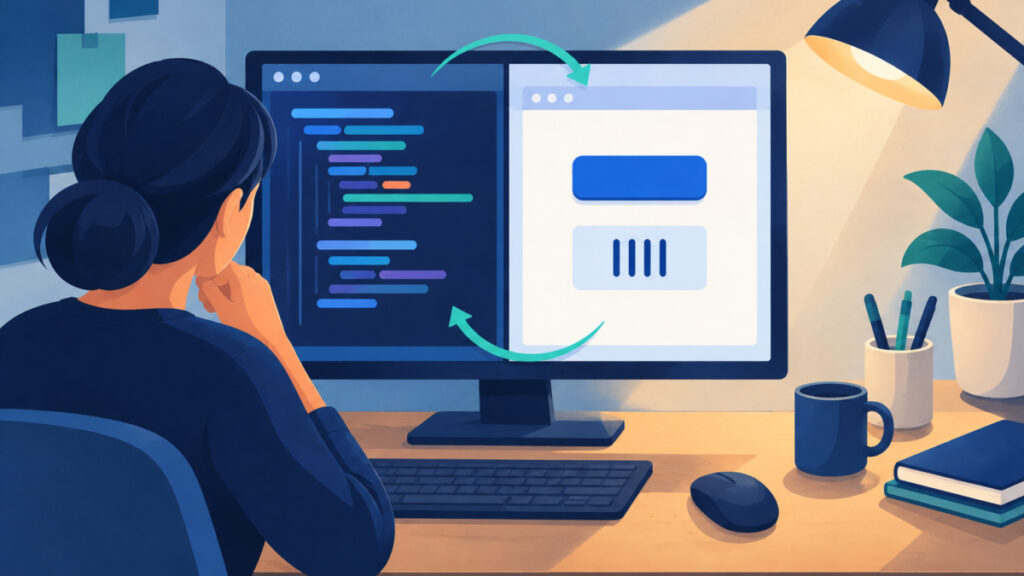
Use this small example because it makes the reset visible without a modal or console. The input is plain HTML with one inline script. The expected output is a line showing the count, a line showing when the script started, and a button that increments the count. Paste it into the editor’s code pane, replacing any starter markup.
<h1>Counter test</h1>
<p id="started"></p>
<p id="count">Count: 0</p>
<button id="add" type="button">Add one</button>

<script>
  let count = 0;
  const output = document.getElementById("count");
  document.getElementById("started").textContent =
    "Script started at " + new Date().toLocaleTimeString();

  document.getElementById("add").addEventListener("click", () => {
    count += 1;
    output.textContent = "Count: " + count;
  });
</script>
Two details keep the test honest. The script sits after the elements it reads, so getElementById finds them when the script runs. The result is written with textContent, which treats the value as text and avoids building markup from a string. The extra Script started at line is a refresh detector: its time changes only when the script runs again.
Steps to see the counter restart
Run this check in order, and wait for the preview to settle between each step.
- Open the HTML Code Editor and paste the example, then pause for a moment so the preview refreshes.
- Note the time on the Script started at line, then click Add one twice. The line should read
Count: 2. - In the code pane, change the heading text from
Counter testtoCounter test 2, then stop typing. - After about half a second the preview refreshes. The heading shows your new text, the count is back at
Count: 0, and the start time has changed.
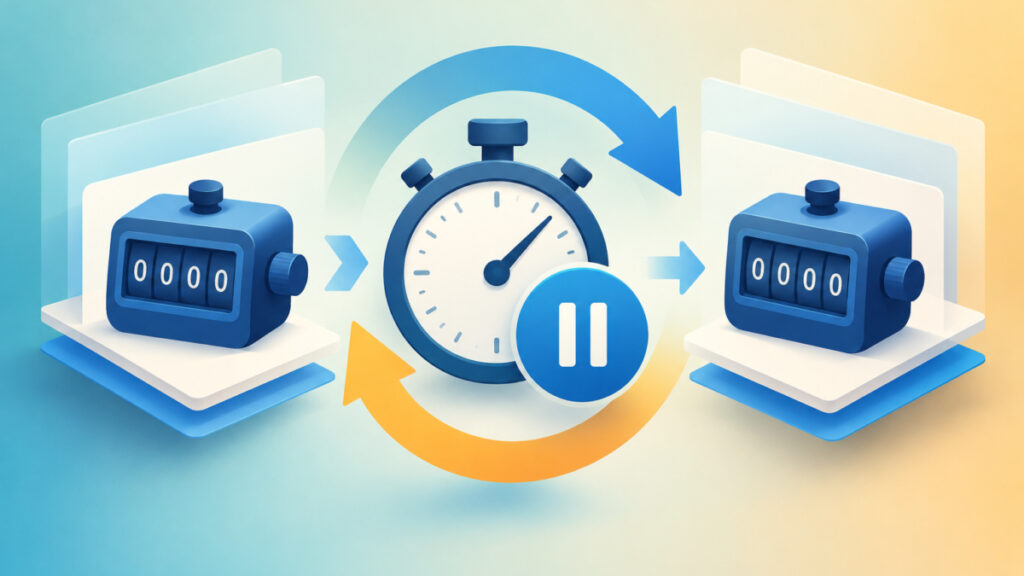
That last observation is the key. The new heading proves your edit reached the preview, and the new start time proves the script ran again. Clicking and editing are different events: a click changes state in the current document, while an edit replaces the document. If the count returned to zero and the start time moved, the reset came from the refresh, not from a bug in the increment logic.
Only the pause matters. If you type continuously, the refresh waits, so you can click the button between edits and the count may seem to survive for a while. The refresh timing is described as about half a second after typing stops, not as an exact guaranteed delay, so treat any specific number as approximate.
What the saved draft keeps when JavaScript state resets after typing
A common confusion is the difference between your saved source and the running page. The product page says the editor can save your source code in the browser. That protects the text you typed. It does not preserve variables inside a preview frame that has been replaced. When you reload the editor and your HTML returns, the script starts fresh just as it does after an edit, because only the source came back, not the memory the script built.
It helps to keep two things apart:
- Source: the HTML and script text in the code pane. This is what browser saving is about.
- Runtime state: variables such as
count, timers and attached listeners. These belong to one preview document and vanish when it is replaced.
If a draft seems to be missing altogether, that is a different question. Browser-saved drafts are tied to the browser and profile you used, which I explain in the guide on a browser HTML editor draft missing in incognito or a different browser. If you are unsure whether the keyboard shortcut stored a copy or downloaded a file, read the article on whether Ctrl+S saves or downloads a file in a browser code editor. Neither of them changes the counter behavior, because neither stores JavaScript variables.
Telling a preview refresh from a real script error
Because a reset can look like a failure, decide which one you have before changing code. The HTML Code Editor has syntax highlighting and auto-closing tags, but it has no validator or linter, so a typo will not be flagged for you. Use what the page shows.
| What you see | Likely cause | What to check |
|---|---|---|
| Count rises, then returns to 0 after an edit and a pause | Normal preview refresh | The start time line changed. No fix is needed for the reset. |
| Count never rises when you click | The script did not attach its click listener | The button ID matches the one in the script, the script comes after the button, and there is no typo in the code. |
| The start time line stays empty | The script stopped before it ran or never ran | Look for an unclosed tag, a missing quote or a misspelled ID near the top of the script. |
Count shows odd text such as Count: NaN | The variable was not a number | Confirm that count starts as 0 and is only changed with += 1. |
One extra trap is a refresh that lands while code is half written. If you pause in the middle of typing an opening script tag or a string, the preview may refresh with incomplete source and show a broken page for a moment. Finish the edit, pause again, and the next refresh shows the complete code. Syntax correctness and behavior are separate checks: a page that loads cleanly proves neither that the logic is right nor that the markup is valid.
Why localStorage is not the fix inside this preview
The obvious idea is to store the count with localStorage and read it back after each refresh. Inside this preview that will not work. The editor’s documentation says its sandbox allows inline scripts but not storage, and reading localStorage throws a SecurityError. The reason is how iframe sandboxing works. A sandboxed frame without allow-same-origin gets an opaque origin, while the localStorage property is tied to a document’s origin. Checked November 14, 2026.
Do not confuse two kinds of storage here. The editor page itself can keep your source code in the browser. That is separate from storage available to code running inside the preview. One does not give the other access.
I would also not weaken the sandbox as a user-side fix. The sandbox exists so that code in the preview cannot reach the surrounding page, and you cannot change it from your HTML anyway. If you need persistence for a real page, plan it where that page is hosted, with its own origin and its own storage design. Test that behavior on the page you ship, not in this preview.
Practical ways to test stateful code with the refresh
You can work with the refresh instead of against it. These habits keep tests reliable:
- Finish the edit, pause, then test. Click the button only after the preview has refreshed, so you test the code you meant to write.
- Set the starting state in the source. To check a later state, temporarily change
let count = 0tolet count = 9, pause, and click. Then restore the value. The state you want is reproduced on every refresh. - Change one thing per refresh. If the count misbehaves after two edits, you will not know which one caused it.
- Make the initial render deterministic. Write the first visible value in the HTML and let the script update it, as the example does with
Count: 0.
If the logic does not depend on a button or the page structure, a different tool may suit it better. The JavaScript Editor lets you run a snippet and read synchronous console output, which is a separate workflow from clicking a DOM button in the HTML live preview. Use the HTML Code Editor when the behavior needs real elements, and use the JavaScript Editor for pure functions. For a longer look at how that chain fits together, see the guide to a Markdown JavaScript editor in the browser, which walks through preview and script testing as separate steps.
Keep examples safe as well. Write results with textContent instead of inserting strings as markup, and do not paste scripts from sources you do not trust into any editor that runs them.
Frequently asked questions
Why does my counter go back to zero when I edit the HTML?
The editor refreshes its preview about half a second after typing stops by replacing the iframe’s srcdoc. That creates a new document, so the script runs again and the variable gets its initial value. Clicking changes only the current document.
Is the reset a sign that my JavaScript has an error?
Not by itself. If the count increases when you click and only returns to zero after an edit and a pause, the refresh explains it. A real error shows up as a count that never changes, an empty start-time line or odd values such as NaN.
Does the preview refresh on every keystroke?
No. The documented behavior is a refresh about half a second after typing stops. Treat that as approximate, not as a guaranteed delay. While you type continuously, the preview stays as it was until you pause.
Can I use localStorage to keep the count between refreshes?
Not inside this preview. The sandbox does not allow storage, and reading localStorage throws a SecurityError. A sandboxed frame without allow-same-origin has an opaque origin, which is why storage tied to an origin is unavailable.
Does saving my draft keep the JavaScript variables?
No. Saving in the browser keeps your source text. Variables, timers and listeners live in the preview document and are discarded when it is replaced, so the script starts fresh when the source comes back.
How can I test what happens at a higher count?
Temporarily change the starting value in the source, for example from 0 to 9, pause for the refresh, then click the button. Restore the original value afterward so the finished code starts where you intend.
Should I use the JavaScript Editor instead for state testing?
Use it for snippets whose behavior does not need page elements, since it runs code in the browser and shows synchronous console output. For a button that updates a paragraph, the HTML Code Editor is the better fit because the preview contains real elements.
Next steps
HTML live preview JavaScript state resets after typing because the editor replaces the preview document through srcdoc shortly after you pause, so any variable held only in memory starts over. Use the counter and its start-time line to confirm that a reset is a refresh and not a bug, keep storage out of the sandboxed preview, and set the starting state in your source when you need to test a later one. As a next step, paste the example into the editor, change one visible word, and watch the start time move. Then build your own stateful snippet the same way, one small edit per refresh.
Related tools and resources on HTML Editor Online:
- HTML Code Editor
- JavaScript Editor
- Markdown JavaScript Editor in the Browser: Write Markdown, Preview HTML and Test Scripts
- Browser HTML Editor Draft Missing in Incognito or a Different Browser: Why and What to Do