
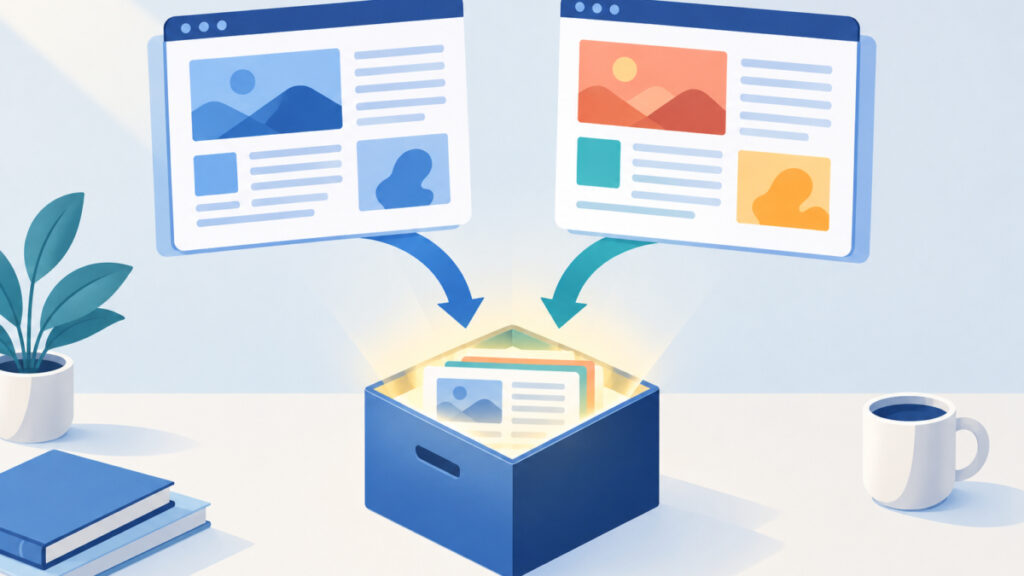
No. Opening the editor in two browser tabs does not give you two saved drafts. The WYSIWYG editor keeps one document in browser storage, so a wysiwyg editor two tabs overwrite draft mix-up is possible when each tab holds a different project. The input is the rich-text content you type or import, and the safe output is a separate HTML file for each project, created with Download HTML before you switch.
This guide walks through an illustrative Project A and Project B sequence, explains why shared browser storage causes the risk, and gives a short routine for the WYSIWYG HTML Editor that keeps every version in a file you control. It does not describe version history, because the editor does not provide it.
Table of Contents
WYSIWYG Editor Two Tabs Overwrite Draft: The Short Answer
The editor’s homepage says your work is saved in the browser as you type, and it offers Download HTML and Import File. Nothing in that description says each tab receives its own draft slot. I read the page on November 3, 2026, and the safest reading is that the editor works with a single stored document for the site in your browser.
That has a practical consequence. Two tabs can show different text at the same moment, which feels like two drafts, but what you see on screen is not the same as what is stored. When either tab saves, it writes to the shared draft, and whatever the other project had stored there is at risk.
I have not run two tabs against the editor while writing this, so I will not tell you what the second tab does on screen when the first one saves. It may keep showing its old content, it may change, or it may behave differently across browsers. The point is that you should not need to find out. If a project matters, the dependable copy is a downloaded file, not a tab that happens to still be open.
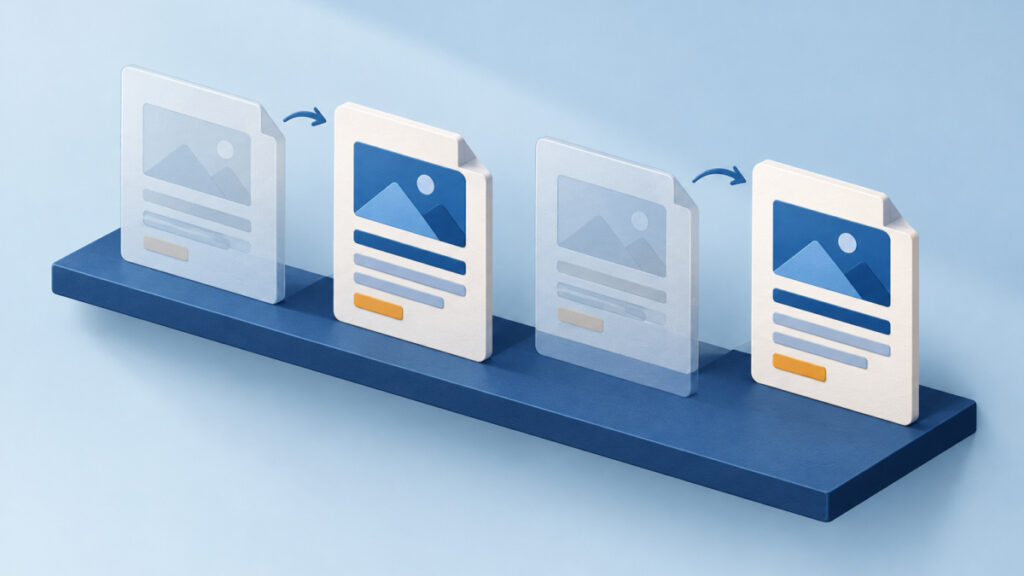
Three things are easy to confuse here, so keep them apart:
- Visible content is what a tab is displaying right now.
- The saved draft is the one document the editor keeps in browser storage.
- A downloaded HTML file is an independent copy on your device that no later edit can replace.
Visible Content Versus the One Saved Draft
Here is a clearly illustrative sequence, not captured output from the editor. Suppose you are writing two pages: Project A is a product announcement and Project B is a help article.
- In tab 1 you write Project A for twenty minutes. The editor saves it to the browser as you type.
- You open the editor in tab 2 for Project B. Depending on how the page loads, it may start from the stored draft or from a blank state. Either way, it is the same site and the same browser storage.
- You type Project B in tab 2. Those edits are saved to the shared draft, and the stored copy of Project A is no longer the only thing in that slot.
- You return to tab 1, still showing Project A. The text is on screen, so everything looks fine.
At step 4 you might be looking at the only remaining copy of Project A, because the stored version may now be Project B. If you then type in tab 1, that tab may save Project A back over Project B, and the problem reverses. Whichever tab saves last is the one that leaves its mark on the shared draft.
This is why I treat the tab as a view and the file as the record. A tab is easy to refresh, close or crash, and a refresh reloads from storage, not from your memory of what the tab showed.
Why Shared localStorage Makes Tabs Behave This Way
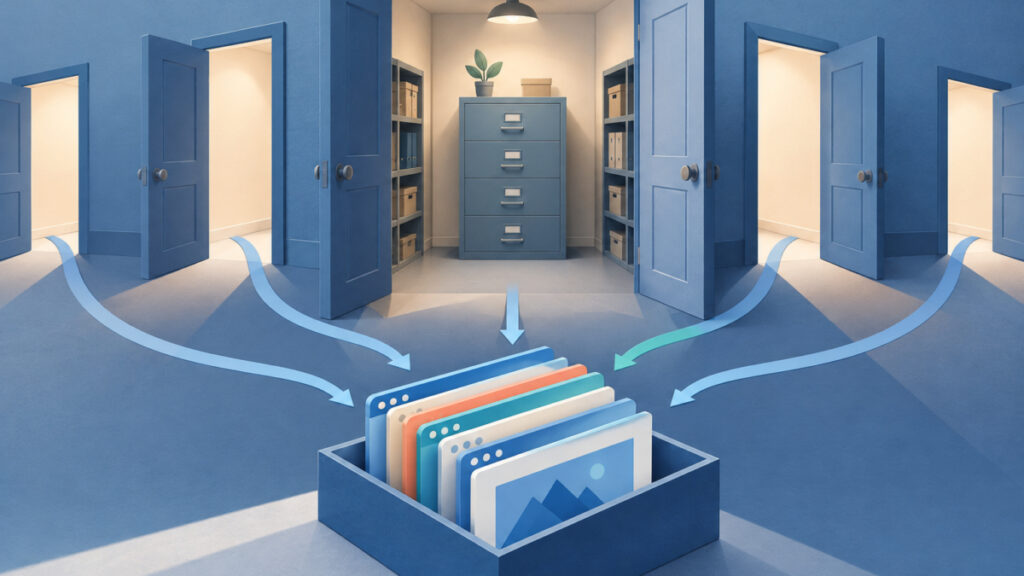
Browser storage is the reason a second tab does not isolate your work. The WHATWG HTML Standard describes localStorage as state that is shared across windows from the same origin, and MDN says plainly that tabs on the same origin share one storage space. An origin is the combination of scheme, host and port, so two tabs on the same site address are the same origin.
The editor says it saves in the browser, and localStorage is the common mechanism for that, but the pages I checked do not state which API the editor uses. So treat the following as the general rule for same-origin browser storage, not a description of the editor’s source code. If your draft lives there, two tabs reach the same stored data.
Pages can learn about changes made elsewhere through the storage event. The standard defines it, but it does not require any particular site to listen for it, so I would not assume the editor synchronizes tabs live. A generic listener looks like this:
window.addEventListener('storage', (event) => {
  if (event.storageArea === localStorage) {
    console.log('Another document changed key:', event.key);
  }
});
This snippet is a general illustration of the event, not code from the editor. The event fires in other documents on the same origin, not in the tab that made the change. Without a listener like it, a tab can keep displaying content that no longer matches storage.
MDN describes localStorage as widely available across browsers, but that general support does not guarantee your own draft will still be there. Storage access can be restricted by browser settings, and private browsing treats persistence differently. A blank draft in a private window or another browser is a separate situation from the tab issue, though it points to the same lesson: browser storage is convenient, not a backup.
Stop a WYSIWYG Editor Two Tabs Overwrite Draft Accident: Download HTML First
The routine is short, and it works because a file on your device is independent of browser storage. Follow it every time you move from one project to another.
- With Project A visible in the editor, click Download HTML.
- Find the downloaded file in your downloads folder and open it. Confirm it contains Project A’s headings, paragraphs and links, not Project B or an empty page.
- Give the file an identifiable name, for example by adding the project and the date. Do this before you forget which download is which.
- Only then start Project B, either by typing or by using Import File with an HTML or TXT file.
- When you finish Project B, click Download HTML again and repeat the check.
- Before you import a saved file or return to Project A, download whatever is currently in the editor first.
A simple naming pattern keeps files from piling up as anonymous downloads:
announcement-project-a-2026-11-03.html
help-article-project-b-2026-11-03.html
Step 2 matters more than it looks. Downloading is not proof that the file is useful, and opening it takes seconds. Also keep in mind that the editor’s Source view works on an HTML fragment and converts back through the visual editor, so my guide to WYSIWYG Source view removing class and ID attributes is worth reading if your content relies on custom attributes. If you are drafting email markup, saving and exporting an HTML email draft safely covers the same download-first habit for that use case.
Once you have two files, import the one you want to continue editing. Use one tab at a time for the editor. A second tab is useful for reading reference material, but if you edit there too, you are back to sharing one stored draft.
Recovery Limits After a Draft Is Replaced
If Project A has already been replaced in browser storage, the dependable copy is a file you downloaded earlier. Without one, I cannot promise any restore path, and neither does the editor’s documented feature list. Browser storage does not keep an older value once a newer one is written over it.
There is one narrow chance worth acting on quickly. If the original tab is still open and still displays Project A, treat that tab as fragile. Click Download HTML in it before you refresh, close it or let the browser restore the session. Then open the file and check it. This is not a guarantee: I cannot tell you whether that button reads the visible content or the stored draft in that situation, which is exactly why the opened file is the proof.
If the downloaded file contains Project B instead, you have learned that the tab’s contents had already been replaced. Do not repeat the click hoping for a different result. Stop, keep the file you have, and rebuild Project A from any other source, such as an earlier export, an email you sent or a pasted copy in another document.
After a recovery, the habit that prevents a repeat is the routine in the previous section. It costs a click and a quick look, and it turns an uncertain browser state into a normal file.
Downloads Are Copies, Not Version History
A downloaded HTML file is a separate copy, and that is all. It is not editor-managed version history. The editor does not list earlier versions, let you roll back or compare drafts. Each download is a snapshot you chose to take, and you are responsible for naming, storing and organizing the snapshots.
That limit changes how often you should download. If you want several checkpoints of the same project, save a new file each time and keep the older ones with a date in the name. If you only keep the latest file under the same name, your computer may add a suffix or you may overwrite it yourself, which gives you a single copy again.
Choose the export that fits the destination too. A TXT file keeps wording but not link addresses, as I explain in why a WYSIWYG TXT export is missing link URLs, so use HTML when you need to keep structure. The editor also has no table button, so if a project depends on tables, build the markup in the HTML Table Generator and keep it in its own file.
If your source is Markdown, the Markdown to Rich Text tool is a separate workflow and its description says it saves no drafts, so keep your Markdown source file as the master copy there as well.
None of this proves the content is correct. A saved file shows that the text exists, not that links work or headings are in order. Check those separately before you publish.
Frequently asked questions
Will two tabs of the WYSIWYG editor save two separate drafts?
No. The editor keeps one document in browser storage, and tabs on the same origin share that storage. Two tabs can show different content for a while, but that does not create two independently saved drafts.
Does the other tab update when I type in the first one?
I cannot say, and I would not rely on it. The storage event can notify other documents, but the HTML Standard does not require the editor to use it for live synchronization. Test with throwaway text, never with real work.
How do I keep Project A safe while I start Project B?
With Project A visible, click Download HTML, open the downloaded file to confirm it contains A, and give it a clear name. Then start or import Project B. Repeat the same steps before you switch back.
Is Download HTML the same as version history?
No. A download is a separate file you save on your device. The editor does not provide version history, so older versions exist only if you downloaded and kept them yourself.
Can I recover an older draft that has already been replaced?
I cannot promise that. If an earlier downloaded file exists, use it. If the original tab still shows the content, download it before you refresh or close the tab, then open the file to see what it actually contains.
Is browser storage a safe backup on its own?
No. MDN describes localStorage as widely available, but access can be restricted and private browsing persists data differently. Treat browser storage as convenient working memory and keep exported HTML files as your backup.
Can I import a saved file to continue editing?
Yes. The homepage offers Import File for HTML and TXT files. Download whatever is currently in the editor first, because importing puts new content into the same single draft.
Next steps
A wysiwyg editor two tabs overwrite draft problem comes from one shared stored document, not from a bug you can tune away. Tabs show content, browser storage keeps one draft, and only a downloaded file keeps a project independent. Before you switch projects, click Download HTML, open the file and confirm it holds the right work. Then start the next project, and repeat the habit each time you move.
Related tools and resources on HTML Editor Online:
- WYSIWYG HTML Editor
- WYSIWYG Source View Removes Class and ID Attributes: Why and What to Do
- HTML Email Editor in the Browser: Draft, Save and Export Markup Safely
- WYSIWYG TXT Export Missing Link URLs: Why the href Is Gone and How to Keep It