
When WYSIWYG heading levels are out of order, the cause is usually simple: the editor shows you a size, but the HTML records a level. A subheading can look perfect on screen and still export as an <h4> directly under an <h2>, or as bold text inside a paragraph. The fix is to choose each level by its place in the outline, then confirm the heading tags in the HTML source before the text goes into a CMS.
In the WYSIWYG HTML Editor you apply H1 to H6 from the headings controls and can open an HTML source view to read the real tags. Below I show a short broken example, a rule for picking the level, a check you can run in the editor and a final review on the published page.
Table of Contents

Why WYSIWYG Heading Levels Out of Order Still Look Right
A heading has two separate properties. The element name, from h1 to h6, says where the heading sits in the document outline. CSS decides how large and bold it looks. The MDN page on heading elements advises choosing levels for the hierarchy, not for font size.
A visual editor blurs that line, because you judge the result by eye. Browsers give lower numbers larger default sizes, so it is tempting to pick whichever level looks closest to what you want. The page looks fine, yet the underlying order is wrong. Typical causes are:
- Choosing an
h4under anh2because it looks smaller and calmer than anh3. - Using a large level for a short label that is really a detail of the section above.
- Typing bold text in a paragraph so it resembles a subheading.
- Pasting content that arrived with levels chosen for a different page.
If you want background on how a WYSIWYG editor turns formatting into markup, that mechanism is why a toolbar click can produce the wrong tag without any visible sign. The editor does exactly what you asked, which was a look.
Why does this matter? Heading markup helps people who use assistive technology identify and move between sections. The WCAG 2.2 explanation of success criterion 1.3.1 covers structure and relationships being programmatically determinable, and success criterion 2.4.6 asks that headings, when provided, describe their topic or purpose. I am not claiming that every skipped level automatically fails WCAG. The W3C WAI headings tutorial presents avoiding skipped heading levels as guidance. A clean heading hierarchy is cheap to get right, so it is worth doing anyway.

A Broken Outline and Its Corrected Version
Here is a small article as an editor might export it. It looks reasonable in a visual view, but the third heading jumps two levels down from the title and one level down from its parent section.
<h1>Guide</h1>
<h2>Planning</h2>
<h4>Set a budget</h4>
<h2>Writing</h2>
“Set a budget” is a subsection of “Planning”, so it belongs one level below it. The repair is to change the third tag and nothing else:
<h1>Guide</h1>
<h2>Planning</h2>
<h3>Set a budget</h3>
<h2>Writing</h2>
Notice that the final <h2> was already correct. Going from an h3 back up to an h2 is normal, because “Writing” is a new section at the same weight as “Planning”. The W3C WAI tutorial makes this distinction: skipping a level on the way down, such as h2 to h4, is the pattern to avoid, while returning to a higher level to start a new section is fine.
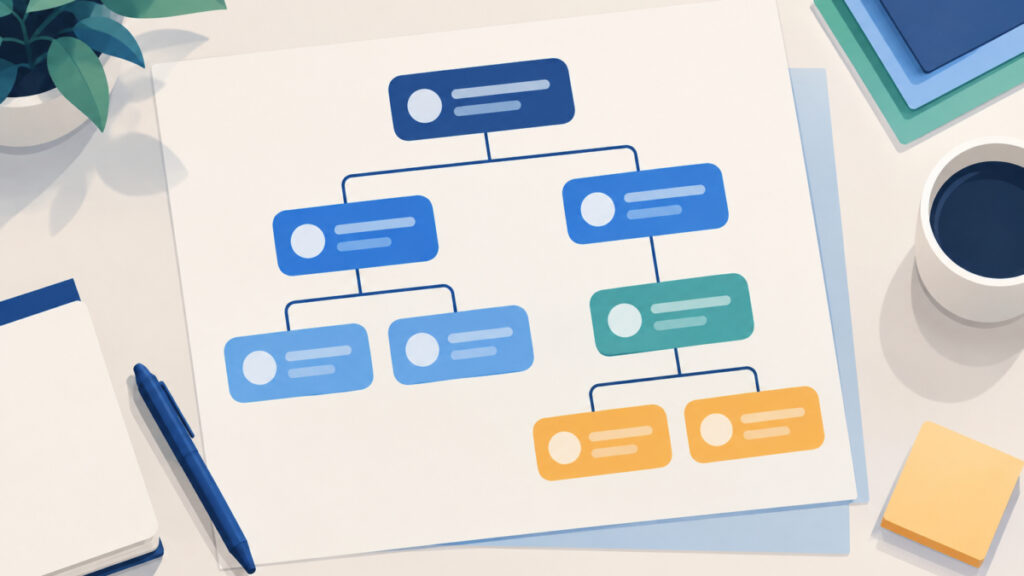
The same logic covers the outline as a whole. Reading only the heading tags from top to bottom should give you a sensible table of contents. If it does not, a reader who navigates by headings will get the same confusing list.
How to Choose a Heading Level by Parent and Sibling
Pick the level by asking one question about each heading: what is it a part of? You can answer it with a short routine that never involves font size.
- Write the outline first: the article title, the major sections and any nested subsections, as a plain indented list.
- For each item, find the nearest heading above it that it belongs to. That heading is its parent.
- Give the item a level exactly one number higher than its parent.
- If the item is a new topic of equal weight to an earlier heading, give it the same level as that earlier heading.
- If it ends a nested group and starts a bigger one, go back up by as many levels as the outline needs.
The table summarizes the decisions.
| Situation | Level to use |
|---|---|
| Detail inside the section above | One level deeper than that section |
| New section with the same importance as the previous one | Same level as the previous one |
| New major section after nested subsections | Return up to the major level |
| Heading that only needs to look smaller | Keep the structural level and change the CSS |
Also keep the wording descriptive. Success criterion 2.4.6 is about headings describing their topic, so “Set a budget” helps more than “Next” or “More”. As for the top level, MDN generally recommends one descriptive h1 per page, but it is a recommendation about page design, so I do not treat it as a hard rule for every document.
Check WYSIWYG Heading Levels Out of Order in the Editor Source
The visual view cannot tell you which tag you applied, so read the source. In the WYSIWYG HTML Editor the routine looks like this:
- Type or paste the article and apply the heading controls (H1 to H6) according to your outline, not according to the size you like.
- Open the HTML source view.
- Scan only the heading tags, in order. Look for a level that jumps down by more than one, a heading that is really a paragraph with bold text, and levels you did not intend.
- Go back to the visual view, select the offending line and apply the correct heading control. Do not add bold or a font size to imitate a heading.
- Reopen the source to confirm the change, then use the HTML copy or download option for your CMS.
The homepage editor is a rich-text editor, so it may remove markup it does not support. That is one more reason to check the source after editing, not only before. If the pasted fragment is hard to read, the HTML Beautifier can re-indent it so the tags line up. It only improves layout; it does not repair heading order or judge whether the structure makes sense.
The HTML Code Editor can render a fragment in a sandboxed live preview, but it has no validator, so it will not warn you about skipped heading levels. A preview that looks right proves the styling, nothing more. Heading tags need a human reading of the markup.
Style the Correct Tag Instead of Faking a Heading
When a heading needs a different look, keep the structural level and change the style. Suppose your third-level headings feel too big. Do not drop them to h4 to shrink them. Apply CSS to the tag that is correct:
.article-body h3 {
  font-size: 1.25rem;
  line-height: 1.3;
  font-weight: 600;
}
Faking a heading with a bold paragraph causes a related problem:
<p><strong>Set a budget</strong></p>
<h3>Set a budget</h3>
The first line looks like a subheading but is emphasized paragraph text, so it does not appear as a heading to tools that list headings. The second line is a real subsection. This is one of the common HTML mistakes to avoid, and it is easy to make in a visual editor because the two lines can look alike.
One more qualification: a <section> or <article> wrapper is not a reason to assume the browser will turn an <h1> inside it into a nested level. MDN notes that the old context-dependent default styling for nested h1 elements was removed from the HTML standard in May 2025. Choose explicit heading tags suited to the final page instead of relying on nesting.
Review the Heading Order on the Published Page
A clean exported fragment is not the end of the check. Your CMS template may already output the page title as an h1, which means the article body should start at h2. In that case, the fragment you paste looks like this:
<h2>Planning</h2>
<h3>Set a budget</h3>
<h2>Writing</h2>
If you copied an editor document that begins with its own h1, you may end up with two top-level headings on one page. Decide which element the template owns and adjust the article so the whole page, not only the fragment, has a sensible outline. Also remember that pasting into a CMS can alter markup, as shown when a Quill code block loses formatting in a CMS, so compare the published HTML with what you exported.
After publishing, view the page and read the heading tags in the rendered markup, for example in your browser’s developer tools. Look at the page title, the section order and every return to a higher level. It is also worth reading each heading on its own: does it describe the section beneath it?
Be realistic about what this proves. Reading heading tags is a structure check. It is not a full accessibility audit, and it does not show that correct headings will improve search rankings. It simply removes one avoidable structural problem.
Frequently asked questions
Is skipping from h2 to h4 an error?
It is a pattern to avoid. The W3C WAI headings tutorial presents avoiding skipped levels as guidance, and I would not claim that every skip fails WCAG on its own. The simple repair is to change the heading to the level that matches its parent, usually h3.
Can I go from an h4 back to an h2?
Yes. Returning to a higher level is normal when a new section starts at that weight. The problem is skipping levels on the way down, not climbing back up.
Does every page need exactly one h1?
MDN generally recommends one descriptive h1 per page, so it is a good default. I would not present it as a universal rule. What matters most is that the page has a coherent outline, and your CMS template often supplies the h1 for you.
Will fixing heading order improve my search ranking?
I cannot promise that. Correct headings make the structure clearer to readers and assistive technology, but a ranking improvement is not guaranteed by markup changes alone.
Why is bold text in a paragraph not a heading?
Bold text is emphasis inside a paragraph. It does not mark the start of a section, so it does not appear as a heading to tools that list headings. Use the heading controls so the editor writes a real h2 to h6 tag.
Should I start my article at h1 or h2 in the editor?
It depends on the final page. If the CMS template already prints the page title as an h1, start the article body at h2. If the document stands alone, begin with an h1. Check the published page rather than only the exported fragment.
Will a section or article wrapper adjust nested heading levels for me?
No. MDN notes that the former context-dependent default styling for nested h1 elements was removed from the HTML standard in May 2025. Write explicit heading tags that suit the final page.
Next steps
WYSIWYG heading levels out of order is a structure problem, not a styling problem. Choose each level by what the heading belongs to, read the heading tags in the source, and use CSS when a heading needs a different look. A short checklist covers it:
- Every subheading is a real heading tag, not bold text.
- Levels step down one at a time and return up whenever a new section starts.
- Headings describe their sections.
- The final page, including the template heading, has a coherent outline.
For a practical next step, outline your next article as a plain list, apply the levels in the editor, and read the source before you copy it. If you want broader context on why a WYSIWYG editor is important, that guide covers the visual workflow these checks sit inside.
Related tools and resources on HTML Editor Online: