
Every developer, data analyst, and project manager eventually faces the same challenge: you have data trapped in a CSV spreadsheet, but your application, API, or database expects JSON. Whether you are migrating legacy data, preparing payloads for a REST endpoint, or feeding structured information into a front-end dashboard, knowing how to convert CSV to JSON quickly and accurately can save hours of tedious manual work. In this complete guide, you will learn every method available — from using a free online converter to writing your own scripts in JavaScript and Python — so you can choose the approach that fits your workflow best.
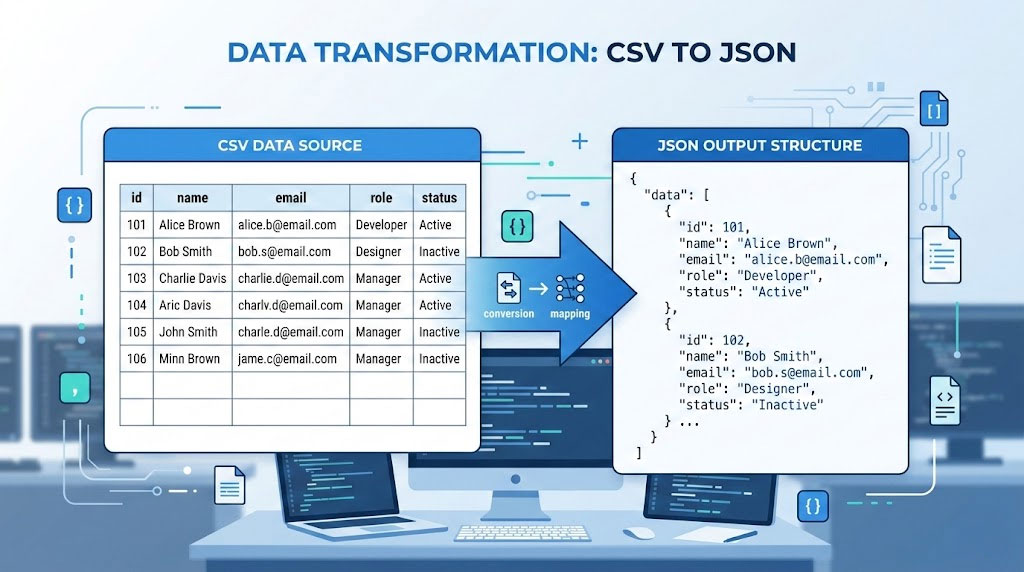
Table of Contents
Why Convert CSV to JSON? Understanding the Two Formats
CSV (Comma-Separated Values) has been a standard for tabular data exchange since the early days of computing. The format was first documented alongside the SuperCalc spreadsheet for the Osborne Executive in 1983, and it remains the default export option in tools like Microsoft Excel, Google Sheets, and nearly every relational database system. Its strength lies in simplicity: every row is a record, every comma separates a field, and virtually any software on any platform can open a CSV file.
JSON (JavaScript Object Notation), on the other hand, has become the dominant data interchange format for the modern web. According to Cloudflare’s API traffic analysis, approximately 97% of API requests use JSON as their transport protocol. The 2025 Postman State of the API Report confirms that REST APIs — which almost universally communicate in JSON — are used by 93% of development teams worldwide. If your application talks to a web service, it almost certainly speaks JSON.
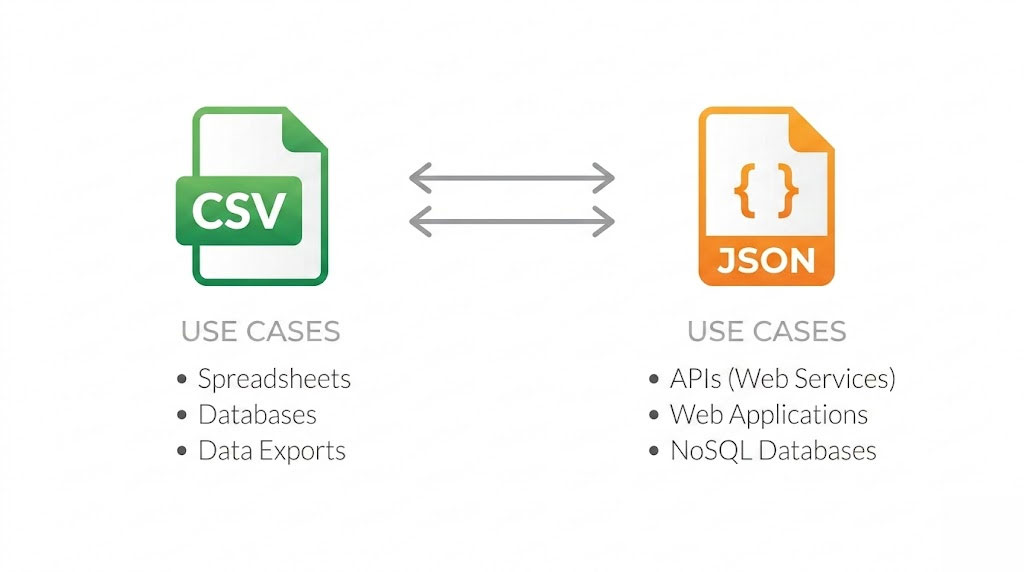
So why would you need to convert CSV to JSON? The answer is straightforward: CSV is where your data often starts (spreadsheets, database exports, legacy systems), but JSON is where your data needs to go (APIs, web applications, NoSQL databases, front-end frameworks). Bridging that gap quickly and accurately is a practical skill every developer and data professional needs.
If you work with JSON regularly, you may also find our guide to formatting JSON like a pro useful for keeping your output clean and readable.
CSV vs JSON: Key Differences at a Glance
Before you start the conversion, it helps to understand exactly what each format can and cannot do. The table below summarizes the core differences that affect how the process works in practice.
| Feature | CSV | JSON |
|---|---|---|
| Data structure | Flat, tabular (rows and columns) | Hierarchical (nested objects and arrays) |
| Data types | None — everything is plain text | Strings, numbers, booleans, null, arrays, objects |
| Human readability | Simple for small files | Readable with proper indentation |
| File size | Compact for tabular data | Larger due to repeated keys |
| Nesting support | Not natively supported | Native nesting of objects and arrays |
| Schema definition | No built-in schema | Can be validated with JSON Schema |
| Primary use cases | Spreadsheets, database exports, data science | APIs, web apps, configuration files, NoSQL |
| Tool support | Excel, Google Sheets, all databases | Every programming language, all modern APIs |
The critical takeaway: CSV excels at flat, tabular data, while JSON excels at structured, hierarchical data. When you transform CSV into JSON, you are essentially converting a flat table into a collection of structured objects — and the tool or script you choose determines how cleanly that transformation happens.
A 2024 IEEE research paper on the comparative performance of CSV and JSON found that for small datasets (under 1 MB), JSON actually processed faster than CSV in execution time (0.014 seconds vs 0.019 seconds), though CSV was slightly more memory-efficient. For larger datasets, the performance gap narrows, making the choice between formats more about structure requirements than raw speed.
How to Convert CSV to JSON Online (Step-by-Step)
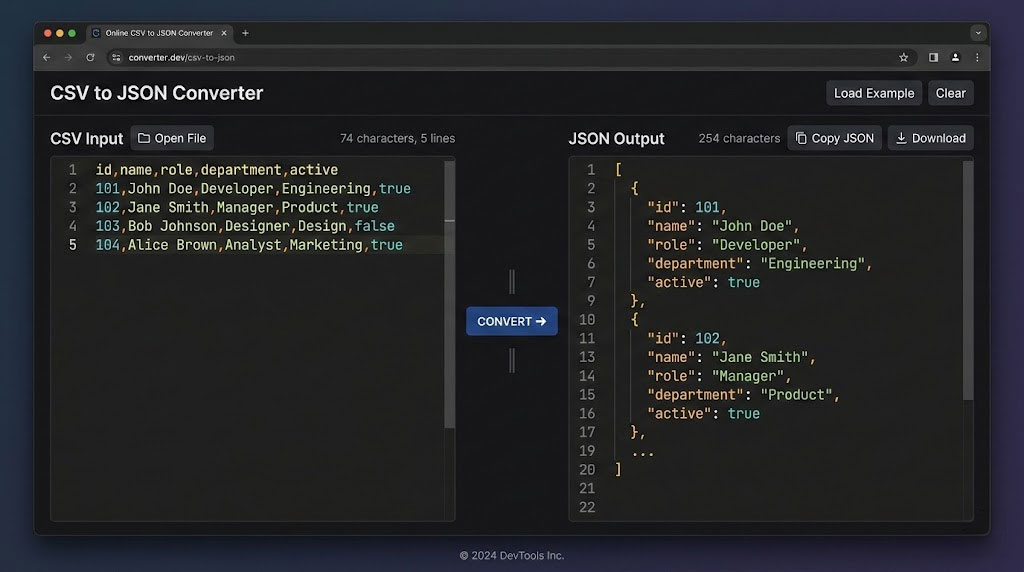
The fastest way to transform your spreadsheet data into JSON is with a free online tool — no installation, no coding, and no dependencies. The CSV to JSON converter on html-editor-online.com handles the entire process directly in your browser, keeping your data private and producing clean output in seconds.
Here is how to use it:
Step 1: Prepare Your CSV Data
Make sure your CSV file has a header row as the first line. The header values will become the JSON keys. For example:
name,email,role,department
Alice Johnson,[email protected],Developer,Engineering
Bob Smith,[email protected],Designer,Marketing
Carol Lee,[email protected],Manager,Operations
Step 2: Paste or Upload Your CSV
Open the CSV to JSON converter and paste your CSV content into the input field. You can also upload a .csv file directly if you prefer.
Step 3: Convert and Copy
Click the convert button. The tool will instantly transform your CSV into a properly formatted JSON array of objects:
[
  {
    "name": "Alice Johnson",
    "email": "[email protected]",
    "role": "Developer",
    "department": "Engineering"
  },
  {
    "name": "Bob Smith",
    "email": "[email protected]",
    "role": "Designer",
    "department": "Marketing"
  },
  {
    "name": "Carol Lee",
    "email": "[email protected]",
    "role": "Manager",
    "department": "Operations"
  }
]
Each row becomes a JSON object, and the header values become the keys. Copy the output, download it as a .json file, or paste it directly into your application.
If you need to validate or further format the output, use the JSON Formatter to prettify the result, or run it through the JSON Validator to confirm it is syntactically correct before using it in production.
Convert CSV to JSON with JavaScript
For developers who need to handle the conversion programmatically — whether in a Node.js backend or a browser-based application — JavaScript offers a clean approach. Below is a lightweight function that handles the process without any external libraries.
function csvToJson(csv) {
  const lines = csv.trim().split('\n');
  const headers = lines[0].split(',').map(h => h.trim());
  const result = [];

  for (let i = 1; i < lines.length; i++) {
    const values = lines[i].split(',').map(v => v.trim());
    const obj = {};
    headers.forEach((header, index) => {
      obj[header] = values[index] || '';
    });
    result.push(obj);
  }

  return JSON.stringify(result, null, 2);
}

// Usage
const csvData = `name,email,role
Alice,[email protected],Developer
Bob,[email protected],Designer`;

console.log(csvToJson(csvData));
This basic function works well for simple CSV files. However, it does not handle quoted fields that contain commas, multi-line values, or special characters. For production use, consider the PapaParse library, which is a robust, well-tested CSV parser that handles all edge cases including quoted fields, custom delimiters, and streaming large files.
// Using PapaParse for robust conversion
const Papa = require('papaparse');

const csvData = `name,email,bio
Alice,[email protected],"Developer, full-stack"
Bob,[email protected],"Designer with 10+ years"`;

const result = Papa.parse(csvData, {
  header: true,
  skipEmptyLines: true,
  dynamicTyping: true
});

console.log(JSON.stringify(result.data, null, 2));
The dynamicTyping: true option automatically converts numeric strings to actual numbers in the JSON output — a detail that matters when your API expects proper data types rather than strings. If you need to edit or test your JavaScript code, the online JavaScript editor provides a quick environment for running and debugging conversion scripts.
Convert CSV to JSON with Python
Python is one of the most popular languages for data processing, and its standard library makes the CSV-to-JSON transformation straightforward. The built-in csv and json modules require no additional installation.
import csv
import json

def csv_to_json(csv_file_path, json_file_path):
    data = []

    with open(csv_file_path, 'r', encoding='utf-8') as csv_file:
        reader = csv.DictReader(csv_file)
        for row in reader:
            data.append(row)

    with open(json_file_path, 'w', encoding='utf-8') as json_file:
        json.dump(data, json_file, indent=2, ensure_ascii=False)

    print(f"Converted {len(data)} records to JSON")

# Usage
csv_to_json('employees.csv', 'employees.json')
The csv.DictReader class automatically maps each row to a dictionary using the header row as keys, which is exactly the structure needed for JSON output. The ensure_ascii=False parameter preserves international characters (accented letters, CJK characters) in the output.
For larger datasets or more complex transformations, the Pandas library offers additional power:
import pandas as pd

# Read CSV with automatic type detection
df = pd.read_csv('products.csv')

# Convert to JSON (array of records)
df.to_json('products.json', orient='records', indent=2)

# Or convert to JSON string for API use
json_string = df.to_json(orient='records')
print(json_string)
Pandas handles edge cases like missing values, mixed data types, and large files (millions of rows) far more gracefully than manual parsing. The orient='records' parameter produces the same array-of-objects format that most APIs and front-end frameworks expect.
How to Convert JSON to CSV
Sometimes you need the reverse operation — converting JSON back to CSV for use in spreadsheets, reporting tools, or systems that expect tabular input. The JSON to CSV converter on html-editor-online.com handles this in the same browser-based workflow.
For a JSON array of flat objects, the conversion is straightforward: object keys become column headers, and each object becomes a row. Nested JSON, however, requires flattening — the converter automatically handles single-level nesting by creating dot-notation column names (e.g., address.city, address.zip).
Here is a Python example for converting JSON to CSV programmatically:
import json
import csv

def json_to_csv(json_file_path, csv_file_path):
    with open(json_file_path, 'r', encoding='utf-8') as f:
        data = json.load(f)

    if not data:
        return

    headers = data[0].keys()

    with open(csv_file_path, 'w', newline='', encoding='utf-8') as f:
        writer = csv.DictWriter(f, fieldnames=headers)
        writer.writeheader()
        writer.writerows(data)

    print(f"Converted {len(data)} records to CSV")

json_to_csv('employees.json', 'employees.csv')
If your JSON data is malformed or contains syntax errors before conversion, the JSON Repair tool can fix common issues like trailing commas, missing quotes, and unescaped characters automatically.
Common Mistakes When Converting CSV to JSON
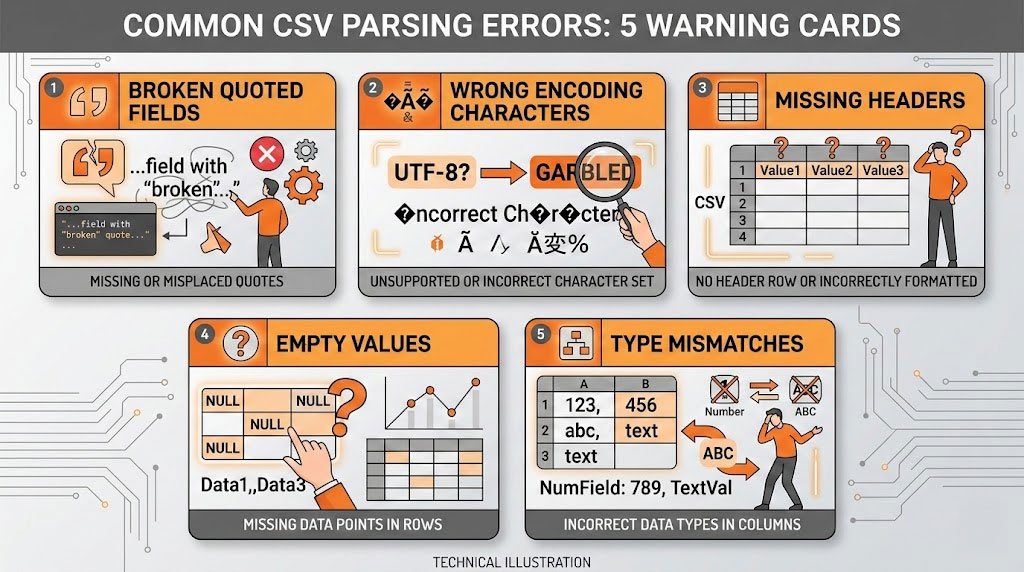
Even experienced developers run into problems during the conversion process. Here are the most frequent pitfalls and how to avoid them.
1. Ignoring Quoted Fields with Embedded Commas
A CSV field like "San Francisco, CA" contains a comma inside quotes. Naive splitting on commas will break this into two fields instead of one, producing corrupted JSON. Always use a proper CSV parser that respects RFC 4180 quoting rules rather than simple string splitting.
2. Treating All Values as Strings
CSV has no concept of data types — the number 42 and the string "42" look identical. When converting to JSON, you need to decide whether numeric values should remain strings or become actual JSON numbers. Most APIs expect proper types, so enable dynamic typing in your parser or add a post-processing step to cast values appropriately.
3. Character Encoding Mismatches
CSV files exported from Excel often use Windows-1252 encoding rather than UTF-8, which can corrupt accented characters, currency symbols, and non-Latin scripts during conversion. Always specify UTF-8 encoding when reading CSV files, or detect the encoding first using a library like chardet in Python.
4. Inconsistent or Missing Headers
If your CSV lacks a header row, the converter has no way to generate meaningful JSON keys. Similarly, duplicate column names (e.g., two columns both named “name”) will cause data loss. Clean your headers before conversion: make them unique, lowercase, and free of special characters.
5. Mishandling Empty Values and Nulls
An empty CSV field could mean an empty string, null, 0, or false depending on context. Decide on a consistent strategy: most converters map empty fields to empty strings (""), but for API consumption, null is often more appropriate. Configure your tool or script accordingly.
Real-World Use Cases for CSV to JSON Conversion
Understanding when and why you would need this conversion helps you pick the right approach for each scenario.
API Integration and Data Migration
Most modern REST APIs accept JSON payloads exclusively. When migrating customer records, product catalogs, or inventory data from spreadsheets to a web application, converting CSV exports to JSON is typically the first step in the pipeline. According to the 2025 Postman report, 75% of development teams use CI/CD pipelines for API deployment, and automated CSV-to-JSON conversion often forms part of that workflow.
Front-End Development and Prototyping
React, Vue, and Angular applications typically consume JSON data. During prototyping, developers often start with sample data in CSV format (because it is easy to create in a spreadsheet) and then convert it to JSON for use as mock data or static fixtures. The online converter provides an instant way to transform spreadsheet data into component-ready JSON without writing any code.
Data Science and Analytics
Data scientists frequently work with CSV files for initial data exploration but need JSON for feeding results into web dashboards, visualization tools, or machine learning pipelines that expect structured input. Python’s Pandas library makes this conversion seamless, as shown in the examples above.
NoSQL Database Import
Databases like MongoDB and CouchDB store documents in JSON (or BSON) format. Importing data from traditional relational databases or spreadsheets requires converting CSV exports into JSON documents. MongoDB’s mongoimport utility even accepts both CSV and JSON as input formats, making the conversion a standard part of database migration workflows.
E-Commerce and Product Feeds
Online retailers commonly manage product catalogs in CSV spreadsheets but need to push that data to marketplace APIs (Amazon, Shopify, eBay) that accept JSON. Automated CSV to JSON conversion ensures product listings stay synchronized across multiple sales channels without manual re-entry.
Best Practices for Clean CSV to JSON Conversion
Follow these guidelines to ensure your conversion produces reliable, production-ready output every time.
Validate Your CSV Before Converting
Check for consistent column counts across all rows, proper quoting of fields that contain delimiters, and valid character encoding. A malformed CSV will produce malformed JSON regardless of the tool you use. Many issues can be caught by opening the file in a text editor rather than a spreadsheet application, which may silently hide formatting problems.
Use Clean, Meaningful Headers
JSON keys should be descriptive, consistent, and follow a naming convention. Before conversion, rename ambiguous CSV headers like “col1” or “Field_3” to meaningful names like “productName” or “price”. Use camelCase or snake_case consistently — mixing conventions creates confusion for developers consuming the JSON.
Validate the JSON Output
After conversion, always validate the output. Even a single missing comma or unescaped quote will make the entire JSON file unparseable. The JSON Validator can instantly check your output for syntax errors before you use it in your application.
Handle Large Files with Streaming
For CSV files larger than a few megabytes, avoid loading the entire file into memory at once. Use streaming parsers — PapaParse supports streaming in JavaScript, and Python’s csv.reader naturally processes one row at a time. Write each JSON object as it is parsed rather than building a massive array in memory.
Preserve Data Integrity
After conversion, spot-check critical fields by comparing a sample of records between the original CSV and the JSON output. Pay special attention to dates (which may shift formats), numbers with leading zeros (like ZIP codes), and fields containing HTML or special characters. If your JSON output needs formatting for readability, the JSON Formatter can prettify the output with proper indentation.
FAQ: Convert CSV to JSON
What does CSV to JSON conversion mean?
This process involves transforming tabular data stored in comma-separated format into structured JSON. Each row in the CSV becomes a JSON object, and the header values become the keys. The result is typically a JSON array containing one object per original CSV row.
Can I use a CSV to JSON converter online for free?
Yes. The CSV to JSON converter on html-editor-online.com is completely free and processes everything in your browser. Your data is never sent to a server, so it remains private and secure. Simply paste your CSV content, click convert, and copy or download the JSON output.
How do I create nested JSON from a flat CSV file?
Flat CSV files do not natively support nesting. To create nested JSON structures, you can use dot-notation in your CSV headers (e.g., address.city, address.zip) and then use a conversion script that interprets dots as nested object paths. Libraries like PapaParse (JavaScript) and Pandas (Python) can be configured to handle this transformation with post-processing logic.
Can I convert large CSV files (100 MB+) to JSON?
For very large files, online tools may hit browser memory limits. Use a streaming approach instead: PapaParse in Node.js or Python’s built-in csv module can process files line by line, writing JSON output incrementally without loading the entire file into memory. For files exceeding several gigabytes, consider using the NDJSON (Newline-Delimited JSON) format, where each line is a separate JSON object.
What is the difference between JSON array and JSON object output?
A JSON array output ([{...}, {...}]) is the most common format when converting CSV, where each row becomes an element in the array. A JSON object output uses a specific field as a key (e.g., {"id_1": {...}, "id_2": {...}}), creating a hash map structure. The array format is more common for API payloads, while the object format is useful for lookups and key-based access.
Can I convert JSON back to CSV?
Yes. The JSON to CSV converter handles the reverse conversion. For flat JSON arrays, the process is straightforward. Nested JSON requires flattening first — the tool automatically creates dot-notation column headers for nested properties.
How do I preserve data types when converting CSV to JSON?
CSV does not store data type information, so all values are initially strings. To preserve proper types in JSON, enable dynamic typing in your parser (e.g., dynamicTyping: true in PapaParse or Pandas’ automatic type inference). This converts numeric strings to numbers and boolean strings to actual boolean values. Always verify the results, as some values (like ZIP codes or phone numbers with leading zeros) should remain strings.
What if my CSV uses semicolons or tabs instead of commas?
Many European CSV exports use semicolons as delimiters because commas serve as decimal separators in those locales. Tab-separated files (TSV) are also common. Most CSV parsers allow you to specify a custom delimiter. In PapaParse, set delimiter: ";" or delimiter: "\t". In Python’s csv module, pass delimiter=';' to the reader constructor. The online converter typically auto-detects the delimiter.
Conclusion: Start Converting CSV to JSON Today
The gap between CSV and JSON is one of the most common data format challenges in modern development. Whether you are preparing data for an API, importing records into a NoSQL database, or building a front-end prototype, having the right tools and techniques to bridge that gap accurately and efficiently makes all the difference.
For quick, one-off conversions, the free online converter gets the job done in seconds without writing a single line of code. For automated workflows, the JavaScript and Python examples in this guide give you a solid starting point that handles real-world edge cases. And when you need the reverse operation, the JSON to CSV converter is always available.
Explore the full suite of free online web development tools for JSON formatting, validation, repair, and conversion — everything you need to work with data formats confidently and efficiently.
Related reading:
- 5 Must-Know Tips for Formatting JSON Like a Pro
- Online JSON Editor: The Complete Guide to Editing JSON in Your Browser
- Free Online Web Development Tools: Every Editor, Formatter, Validator, and Converter You Need
- HTML Editors: A Comprehensive Guide to Choosing the Best Tool
Sources: Cloudflare, Landscape of API Traffic (2025); Postman, 2025 State of the API Report; IEEE, Comparative Performance Analysis of CSV and JSON Formats (2024); IETF, RFC 4180 — Common Format for CSV Files (2005).







Comments