To turn Markdown into formatted text, paste it into the Markdown to Rich Text tool, click Convert, check the sanitized preview, then copy or download the result. For the return trip, fix or extend the content in the WYSIWYG HTML Editor, read its Source view, and run the HTML through HTML to Markdown. The input is Markdown text, the output is formatted text, a complete HTML file or an HTML-based Word .doc file, and the way back gives you usable Markdown, not a byte-for-byte copy of your original. This guide walks through a small markdown to rich text round trip and the checks I would run after each step.
Table of Contents

When to Convert Markdown to Rich Text Instead of Keeping Markdown
Treat Markdown as the editable source and rich text as a delivery format. That framing tells you when conversion helps. An AI response, a set of notes or a README draft often shows visible markers such as #, ** and pipe characters, while the person receiving it needs real headings, lists, links and tables in an email, a document or a CMS field. Converting Markdown to rich text solves that. It does not help when the destination already renders Markdown, such as a repository README, because there the original text is the better file to keep.
Two specifications are worth knowing. CommonMark defines the core syntax, and its specification at spec.commonmark.org lists version 0.31.2 dated January 28, 2024. GitHub Flavored Markdown adds extensions such as pipe tables and task lists, and its published specification is version 0.29-gfm dated April 6, 2019. Because tables and task lists are extensions, a destination may handle them differently, so test a small sample before you trust a long document.
If you need HTML for a web page rather than a document, the Markdown to HTML converter uses the marked library for GitHub-flavored Markdown. It can keep raw HTML and unsafe links, so sanitize its output before showing untrusted input publicly. If your Markdown is really a prompt for an AI tool, the guide to writing structured prompts in the AI Prompt Markdown Editor covers that separate workflow.

A Small Markdown Sample for Testing Conversion
A good test file contains each structure that tends to break: a heading, a link, a nested list, a table and a fenced code block. Every line below uses fictitious data. Each block starts after a heading or a blank line, so no parser has to guess where one block ends and the next begins.
# Release notes

Read the [project page](https://example.com/project) first.

## Tasks

- Setup
  - Install the package
  - Run the check
- Review

## Owners

| Step | Owner |
| --- | --- |
| Draft | Maya |
| Review | Ken |

## Check

```bash
npm test
```
Each part tests something specific. The absolute link checks that destinations survive sanitizing. The two-level list checks nesting. The table needs its separator row, the line of dashes under the header, to be recognized as a table. The ## Owners heading and the blank lines after it matter here: without a clear break after - Review, a parser can read the table lines as a continuation of the last list item instead of a separate table. The fenced block follows its own heading for the same reason, so it is parsed as a separate block. If you copy the sample into another tool and the table or code fence looks wrong, check first that the headings and blank lines were not removed during the copy. Once this sample behaves the way you expect, paste your real content.
If you need HTML for a web page rather than a document, the Markdown to HTML converter uses the marked library for GitHub-flavored Markdown. It can keep raw HTML and unsafe links, so sanitize its output before showing untrusted input publicly.

Convert Markdown to Rich Text Step by Step
Open the converter and follow these steps:
- Paste your Markdown, import a UTF-8
.md,.markdownor.txtfile, or load the built-in example. The stated input limit is 500 KB. - If an entire AI response is wrapped in one Markdown code fence, remove that outer fence so the text is converted as a document. Keep the fences around actual code samples.
- Click Convert. Click it again after every edit, because the preview reflects the last conversion.
- Inspect the formatted preview. Look at heading levels, table columns, nested-list indentation, link text and code whitespace.
The page documents support for GFM-style pipe tables, strikethrough, nested lists and fenced code blocks. A table needs the header separator row, task checkboxes become static symbols rather than clickable boxes, and code blocks have no syntax highlighting.
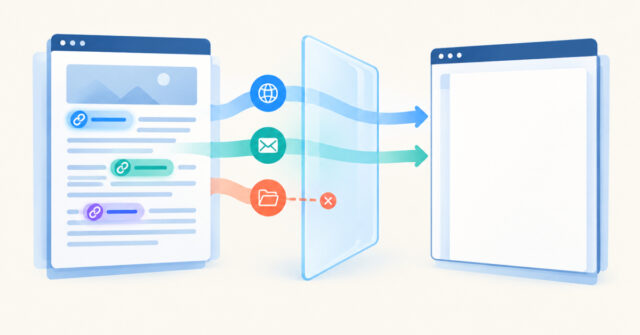
The preview is sanitized, and that is a deliberate boundary. According to the page, generated HTML is cleaned before preview and export, removing images, embedded media, scripts, custom styles and unsafe links, and remote image addresses are not loaded. Only absolute HTTP, HTTPS and mailto link destinations are kept, so a relative README link such as ./docs/setup.md needs to become a full URL before you convert a standalone document. The page also states that conversion runs in your browser without uploading the input or saving it between visits.
A sanitized preview is a useful safeguard, not proof that every link is correct or that arbitrary HTML is safe in another application. MDN explains the underlying risk of injecting untrusted HTML without sanitization in its innerHTML reference. Read each link destination yourself before you send the result to anyone.
Choosing Between Copy Rich Text, Plain Text, HTML and Word
Pick the output by what the destination can accept, then verify it there.
| Control | What you get | Check afterward |
|---|---|---|
| Copy Rich Text | Formatted HTML on the clipboard, with a plain-text alternative | Paste normally into a rich-text field and look at headings, tables and links |
| Copy Plain Text | The visible text only, without heading levels or table styling | Use it for fields that strip formatting anyway |
| Download HTML | A complete HTML document | Open it in a browser and compare it with the preview |
| Download Word | An HTML-based .doc file, not a native .docx | Word may ask you to confirm the format; save as .docx afterward if you need that |
Clipboard access and the formatting that survives a paste depend on the browser, its permissions and the receiving application. If copying fails, select the preview manually or download a file instead. If you want to copy Markdown to Word, expect to review headings and table borders in Word itself, since this is an HTML-based file and not a Word-native document.
Rich Text to Markdown: Editing Visually and Converting Back
The return trip uses the WYSIWYG HTML Editor, a Quill-based visual editor with an HTML source view, then HTML to Markdown for the final conversion. For a rich text to Markdown pass, work like this:
- Paste or write the formatted content. The toolbar offers headings, lists, links, images, video embeds and code blocks. There is no table button, so keep table content in your original Markdown rather than building it here.
- Click Source to read the generated HTML. The editor’s preview is plain text and never shows markup, so only Source tells you what the HTML actually contains.
- If you edit in Source, click Apply Changes. The content is processed through Quill again, so markup Quill does not support can disappear. Open Source once more to confirm.
- Click Copy HTML to copy the content fragment.
- Paste the fragment into HTML to Markdown, click Convert, then inspect, copy or download the Markdown.
The method works because HTML is a structured middle step. A converter can map a heading element to a Markdown heading, a link element to link syntax and a list item to a list marker, as long as the HTML uses elements it recognizes. Ordinary headings, emphasis, paragraphs and links usually carry over when the intermediate HTML has the matching elements. I would not promise exact spacing, syntax style or original link-reference style.
The important exception is Quill 2 itself. The editor documents that bullet items are written as an ol element marked with data-list="bullet", and code blocks use div elements rather than pre. In Source, a bullet may look like this:
<ol>
  <li data-list="bullet">Install the package</li>
</ol>
Outside the editor’s stylesheet, such a list can appear numbered, and a code block can lose its visual treatment. I would not assume these constructs automatically become Markdown bullets or fenced code. Check the converted Markdown for the shapes you want:
- Install the package

```bash
npm test
```
If the output shows numbers where you expected bullets, or code as ordinary paragraphs, fix those lines by hand. Also remember that the editor saves a draft in browser local storage. That is not version history, so export or copy anything you cannot afford to lose.
Manual Checks After a Markdown to Rich Text Round Trip
A clean conversion is not a correctness check. Formatting, syntax and meaning are separate questions, so review the result against this list:
- Link destinations: hover or read each URL. Relative links need to be absolute, and anything that was not HTTP, HTTPS or mailto was removed.
- Heading hierarchy: confirm levels still descend in order and that a visual bold line did not turn into a heading, or the reverse.
- List type and nesting: check bullets versus numbers and the indentation of child items.
- Tables: confirm every column and the header row. Remember the visual editor has no table button.
- Code blocks: check fences, indentation and line breaks.
- Task markers: checkboxes become static symbols in rich text, so the checked or unchecked state may need re-entering.
- Removed content: images, embeds, colors, fonts and custom styles are not reliable round-trip content.
A useful verification loop is to paste the returned Markdown back into the converter and compare the new preview with your first one. If they match, the structure survived. Keep the original Markdown next to the converted copy whenever exact source preservation matters. The online WYSIWYG HTML editor guide covers the visual editor in more depth if you want to learn its toolbar before relying on it for this workflow.
Frequently asked questions
How do I convert Markdown to rich text for pasting into Word?
Paste the Markdown into the Markdown to Rich Text tool, click Convert, check the preview, then use Copy Rich Text and paste into your document. Results depend on the browser and the receiving application, so review headings, tables and links after pasting.
Does the Download Word option create a .docx file?
No. It creates an HTML-based .doc file. Word may ask you to confirm the format when you open it, and you can then save a .docx copy from Word if you need one.
Can I convert rich text to Markdown without losing formatting?
Not reliably in every case. Headings, emphasis, paragraphs and links usually carry over when the HTML contains matching elements, but nested lists, tables, code blocks and task markers need a manual check. Colors, fonts, alignment and embeds are not dependable round-trip content.
Why are my images missing after conversion?
The forward converter sanitizes its output and removes images, embedded media, scripts, custom styles and unsafe links, and it does not load remote image addresses. Add images in the destination application after you paste the text.
Why did my relative Markdown links stop working?
The converter keeps only absolute HTTP, HTTPS and mailto link destinations. Replace relative paths such as a docs folder link with full URLs before converting a standalone document.
Why do my bullets look numbered or my code block look plain after using the WYSIWYG editor?
The editor documents that Quill 2 writes bullet items as an ol element with data-list set to bullet, and code blocks as div elements. Outside its stylesheet these can look numbered or unstyled, so check Source and the converted Markdown.
Is my Markdown uploaded or saved when I convert it?
The converter page says conversion runs in your browser without uploading the input or saving it between visits. The WYSIWYG editor is different: it saves a draft in browser local storage, which is not version history.
Next steps
Markdown to rich text conversion works best when you treat Markdown as the source you keep and the formatted output as a copy you deliver. Convert, read the sanitized preview, choose the right output, and verify the paste in the real destination. For the way back, inspect Source, convert the HTML to Markdown, and check links, lists, tables and code by hand. Your next step is simple: paste the sample from this guide into the converter, run the full loop once, and compare the first and last previews before you try it on a real document.
Related tools and resources on HTML Editor Online:
- Markdown to Rich Text
- WYSIWYG HTML Editor
- HTML to Markdown
- Markdown to HTML
- AI Prompt Markdown Editor: How to Write Structured Prompts That Get Better AI Results
- Online WYSIWYG HTML Editor
Sources and further reading
- https://spec.commonmark.org/
- https://github.github.com/gfm/?source=post_page—–d981ed7f8bfb———————-
- https://developer.mozilla.org/en-US/docs/Web/API/Element/innerHTML
- Markdown to Rich Text Converter – Copy to Word | HTML Editor Online
- Advanced WYSIWYG HTML Editor – Create and Edit HTML Easily | HTML Editor Online