
When WYSIWYG TXT import line breaks collapse, the cause is not a broken download. The editor reads a .txt file as HTML, and in HTML a plain newline is ordinary whitespace, not a paragraph boundary. In the WYSIWYG HTML Editor, the input is a .txt file saved with Download TXT, and the output after Import File can be the same words in one merged paragraph. If you need paragraph structure to come back, use Download HTML instead and reimport that file. This article compares the plain-text preview with the import result, explains the mechanism, and gives a short checklist.
Table of Contents
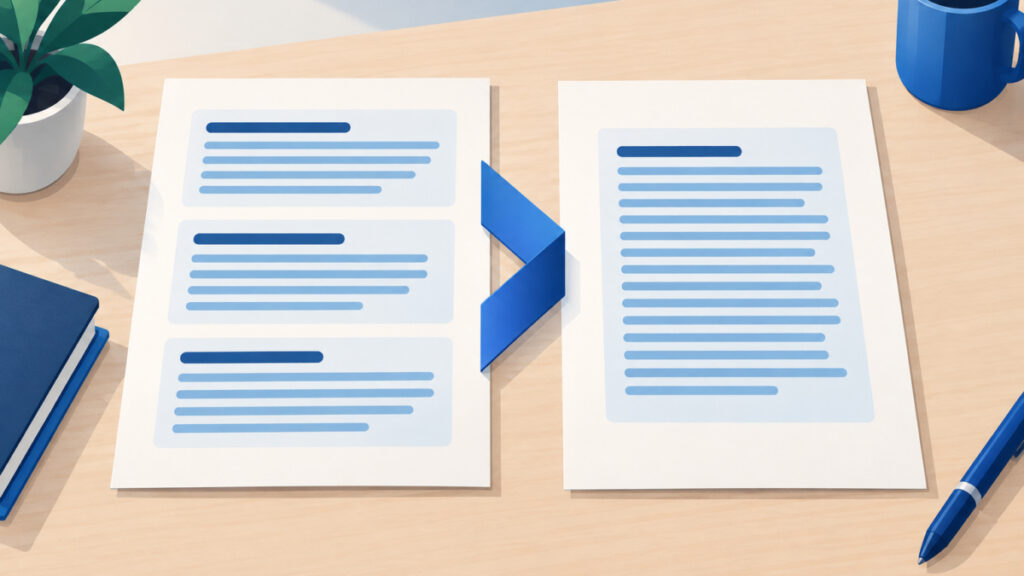
WYSIWYG TXT Import Line Breaks Collapse: Compare Preview and Result
Start with what the editor shows. The right-hand panel is labelled Live Preview (Plain Text), and the page offers Download TXT, Download HTML and Import File. I checked the page on October 30, 2026. Its import guidance states the key asymmetry: a .txt file is read as HTML, so ordinary line breaks collapse and the contents can land in one paragraph. That is a property of this editor’s import workflow, not a rule that every TXT import elsewhere behaves the same way.
Here is a small, illustrative round trip with fictitious text. Type two paragraphs in the visual editor. After Download TXT, the file should contain something like this:
First paragraph

Second paragraph
Now import that file with Import File. The words may remain while the visual separation between the two paragraphs disappears. I have not promised an exact result for your content, so treat the table below as a way to organize your own comparison.
| Stage | What you see | What it tells you |
|---|---|---|
| Visual editor | Two paragraphs | The structure exists on screen |
| Plain-text preview | Two separate lines of text | A text view, not proof that paragraph markup was saved |
| Downloaded .txt file | Text with a blank line between the two parts | Newline characters in a text file |
| After Import File | Words may stay, separation may vanish | Text interpreted as HTML, not as paragraphs |
Notice that the downloaded file is not the suspect. I am not claiming it lost its newline characters, and you can confirm that by opening it in any plain text viewer. The difference appears at import time, when the same characters are given a different meaning.

Why WYSIWYG TXT Import Line Breaks Collapse: Newlines Are Not Paragraphs
A TXT file is a sequence of characters. It can contain newline characters, but it has no way to encode an HTML paragraph element by itself. When the import treats that text as HTML, the newlines become whitespace inside a text node. By default, CSS white-space handling collapses runs of whitespace, including source newlines, into a single space when the text is displayed. MDN describes this in its guide to handling whitespace, and it distinguishes whitespace that stays in the DOM text from whitespace that is collapsed for display.
HTML expresses paragraphs with the p element, defined in the grouping content section of the WHATWG HTML Living Standard. The br element, covered in the text-level semantics section, is a line break inside content, not a new paragraph. Those pages identify their update date as October 30, 2026.
<p>First paragraph</p>
<p>Second paragraph</p>
Those two elements carry the paragraph structure. The two lines of a TXT file carry only newline characters, so the structure is not in the file to begin with. That is why the plain-text preview can look right while the file cannot restore the paragraphs: the preview shows text, not proof that paragraph markup was saved in TXT.
On a page you control, a display rule can keep source newlines visible:
.notes { white-space: pre-line; }The white-space: pre-line value keeps newlines as line breaks while still collapsing runs of spaces, as described in the MDN reference for white-space. It is a display rule for your own pages, not an Import File option, and it does not create paragraph elements.
Quill’s documentation gives useful context, not proof of this site’s exact implementation. Its API documentation distinguishes plain-text retrieval from HTML export, and its Clipboard module documentation says incoming HTML is interpreted into its document representation rather than preserved byte for byte. I cannot say which API calls this site uses, so I rely on the page’s own import guidance for the behavior itself.

Keep Paragraphs: Download HTML and Reimport
If the file needs to return to the visual editor with its paragraphs, save it in a format that carries them. HTML does, because it uses elements for paragraphs. Here is the workflow in the WYSIWYG HTML Editor:
- Write or edit your content in the visual editor and compare it with the Live Preview (Plain Text) panel.
- Choose Download HTML, not Download TXT.
- Optionally open the saved file in the HTML Code Editor to read the source. That editor has a sandboxed rendered preview but no validator, so use it for reading, not for proof of correctness.
- Choose Import File and select the .html file.
- Check the result: count the paragraphs on screen, then look at the source view.
If you saved the file locally and want a quick count, this command lists paragraphs that use plain p elements. It assumes your file uses them, so read the file before trusting the number:
grep -o -E '<p[ >]' saved.html | wc -l
HTML is the better choice here, but a visual editor’s import is not a guarantee of byte-for-byte preservation of arbitrary markup. The editor interprets incoming HTML into its own content model, so markup it has no format for can be reduced. The guide on why the WYSIWYG source view removes class and ID attributes shows the same pattern with custom attributes, and why a pasted HTML table disappears shows it with structure the editor cannot hold. The homepage editor has no tables, so keep those in a code editor.
Browser auto-save on this editor is local to your browser, so I would still keep the downloaded HTML file as a backup copy you can reimport. Treat reimport as something to verify each time, not as a lossless restore.
Troubleshooting a Merged Import
Work through these checks in order. They separate a file problem from an import problem without guessing.
- Check the file extension. A file named notes.txt is a TXT file even if you intended HTML. Rename a copy to .html only if its contents really are HTML.
- Check the actual contents. Open the file in a plain text viewer. If the blank lines are there, the download is fine and the collapse happens at import.
- Check for tags inside a .txt file. By the import guidance, a .txt file is read as HTML, so any tags inside it would be interpreted. Test with a copy.
- Check the paragraph structure after import. Compare the visual editor with the source view, and look for separate
pelements. - Do not blame a browser yet. I have not reproduced this in several browsers, so I do not attribute the behavior to one or claim a support difference.
If all you have is a merged paragraph, place the cursor at each boundary in the visual editor and press Enter. If all you have is a TXT file, one option is to treat it as Markdown, where blank-line-separated blocks become paragraphs. Paste it into Markdown to HTML, then save the result yourself as an .html file and import that. Two cautions apply. Markdown reads characters such as #, * and leading hyphens as syntax, so plain prose can change. Markdown to HTML may also retain raw HTML, so never publish or import untrusted input without sanitizing it. A single newline inside a Markdown paragraph is still just a soft break, which can collapse again.
When Download TXT Is Still the Right Choice
Download TXT is not a bad option, only a different one. Use it when the goal is readable text rather than a structure-preserving editing backup: a plain note, content for a field that accepts only text, or a quick check of what the words say. Use Download HTML when the file must come back to the visual editor with its paragraphs.
| Your goal | Better export |
|---|---|
| Reimport with paragraph structure | Download HTML |
| Share readable text | Download TXT |
| Open the content in a word processor | Word (.doc), which is HTML-based, not .docx |
If your real problem is the opposite, stray styling coming in from outside, read how to remove formatting from pasted text in the editor. If you draft in Markdown and move between formats, the walkthrough of Markdown to Rich Text and back covers a different round trip, with its own limits. Every format round trip has the same rule: decide what must survive, pick the format that stores it, and verify the result instead of assuming it.
Frequently asked questions
Does Download TXT remove the paragraph breaks from the file?
I would not claim that. The file should contain newline characters, and you can confirm that by opening it in a plain text viewer. The merging appears after Import File, when the editor reads the .txt file as HTML and ordinary line breaks collapse.
Why does the plain-text preview look correct if the import merges paragraphs?
The preview is labelled Live Preview (Plain Text), so it shows the text on separate lines. That does not prove paragraph markup was saved in a TXT file. TXT can hold newlines but not HTML paragraph elements by itself.
Should I use Download HTML or Download TXT for a backup?
Use Download HTML when the file has to return to the visual editor with paragraph structure. Use Download TXT when you only need readable text. After either, reimport once and inspect the result, because browser auto-save is only local.
Is this how every TXT import works?
No. It is a property of this editor’s import workflow, where a .txt file is read as HTML. Other tools may treat plain text differently, so do not generalize from this one behavior.
Is the collapse specific to one browser?
I have not reproduced it across browsers, so I do not attribute it to a particular browser or claim a support difference. The explanation rests on how HTML treats whitespace and paragraphs, and on the import guidance for this editor.
How can I repair a paragraph that has already merged?
In the visual editor, place the cursor at each boundary and press Enter to start a new paragraph. For a longer TXT file, you can convert it with Markdown to HTML, save the result as an .html file and import that, after checking that Markdown syntax did not change your text.
Would adding br elements fix the merged paragraphs?
A br element is a line break inside content, not a new paragraph, so it is a different structure than separate p elements. If you need paragraphs, export HTML that uses p elements and inspect the result after import.
Next steps
WYSIWYG TXT import line breaks collapse because a TXT file holds newline characters while HTML paragraphs need p elements, and the editor reads a .txt file as HTML. The plain-text preview is a text view, not evidence that paragraph markup was saved. Your next step is small: write two paragraphs in the editor, choose Download HTML, then Import File, and confirm in the source view that both paragraphs are still separate.
Related tools and resources on HTML Editor Online:
- WYSIWYG Source View Removes Class and ID Attributes: Why and What to Do
- Remove Formatting From Pasted Text in WYSIWYG HTML Editor
- HTML Email Editor in the Browser: Draft, Save and Export Markup Safely
- Markdown to Rich Text and Back: A Practical Round-Trip Workflow for Writers and Developers