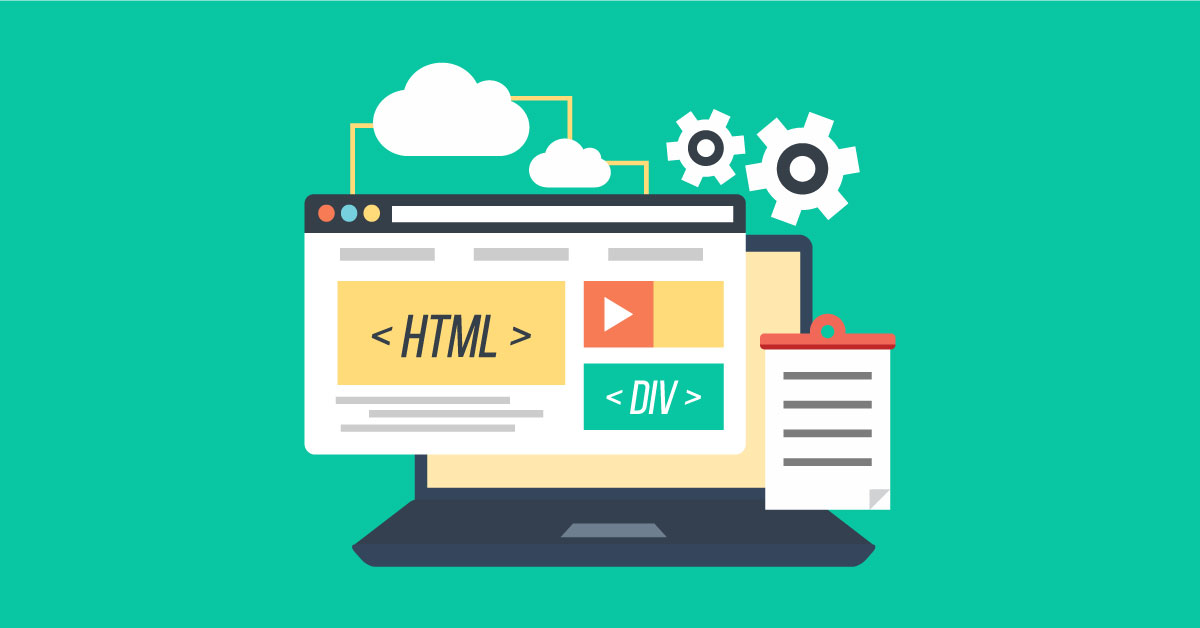
Whether you are building your first website or managing a complex web project, finding the right HTML editor can transform your entire workflow. With close to 2 billion websites on the internet and an estimated 30 million web developers worldwide (Mediusware, 2025), the demand for efficient, accessible editing tools has never been higher. The challenge is not a lack of options — it is knowing which type of HTML editor fits your skill level, your project requirements, and the way you prefer to work.
This guide breaks down every category of HTML editor available today, compares key features side by side, walks you through practical usage with code examples, and helps you decide exactly which tool to use — so the search really is over.
Table of Contents
What Is an HTML Editor and Why Does It Matter?
An HTML editor is a software tool — either web-based or installed on your computer — designed specifically for writing, editing, and managing HTML code. While you can technically write HTML in a plain text editor like Notepad or TextEdit, a dedicated code editor provides features such as syntax highlighting, code completion, error detection, and live preview that dramatically speed up development and reduce mistakes.
Consider the difference: in a plain text editor, a missing closing tag can take minutes to track down. In a proper code editor, syntax highlighting and built-in validation flag the error instantly. According to user surveys, features like intelligent code completion lead to roughly 27% fewer coding mistakes (GreenGeeks, 2025). For anyone building web pages — from bloggers formatting posts to developers shipping production code — the right editor is not a luxury, it is a necessity.
If you are new to HTML and want to understand what WYSIWYG means and how visual editing works, that foundational knowledge will help you make sense of the editor categories discussed below.
Types of HTML Editors: Which One Is Right for You?
These tools fall into four broad categories, each suited to different workflows and experience levels. Understanding these categories is the fastest way to narrow down your search.
Online HTML Editors
Online HTML editors run entirely in the browser, which means there is nothing to download or install. You open a URL, start typing code, and see results immediately. This makes them ideal for quick edits, learning HTML, testing snippets, and collaborating remotely.
The online HTML editor at html-editor-online.com is a strong example. It provides a live preview so you can see your code rendered in real time, a built-in syntax checker to catch errors, and support for both WYSIWYG and source-code editing modes. Because everything runs in the browser, you can use it from any device — a desktop at work, a laptop at home, or even a tablet on the go.
Other popular browser-based platforms include CodePen, which hosts over 2.6 million active users monthly for quick front-end experiments, and JSBin, which isolates HTML, CSS, and JavaScript into separate panels for a cleaner editing experience (Hostinger, 2025).
Desktop Code Editors
Desktop code editors are installed locally and offer deeper feature sets, faster performance on large files, and extensive plugin ecosystems. They are the go-to choice for professional developers working on multi-file projects.
Visual Studio Code (VS Code) dominates this category, holding over 54% market share according to the 2024 Stack Overflow Developer Survey. It is free, supports over 30,000 extensions, and includes built-in AI code assistance that eight out of ten users say increases their productivity. Sublime Text is known for raw speed — it launches in under one second and uses only about 80 MB of memory for standard HTML editing. Notepad++ is even leaner at roughly 15 MB of memory, making it ideal for quick edits and working with very large files.
For developers who also work with CSS, JavaScript, and other web languages, the code editor on html-editor-online.com can complement a desktop setup by providing a quick, no-install option for testing snippets directly in the browser.
WYSIWYG HTML Editors
WYSIWYG (What You See Is What You Get) editors let you design web pages visually — much like using a word processor — while the editor generates HTML code behind the scenes. This approach is particularly valuable for content creators, marketers, and designers who need to produce web-ready content without writing raw code.
Understanding why WYSIWYG is important comes down to speed and accessibility. You can format text, insert images, create tables, and adjust layouts with immediate visual feedback. Tools like TinyMCE (used by companies including Atlassian and Evernote), CKEditor 5 (which supports real-time collaboration), and the WYSIWYG editor at html-editor-online.com all fall into this category.
The best WYSIWYG editors generate clean, semantic markup that you can inspect and refine manually if needed — combining the convenience of visual editing with the precision of source-code control.
Integrated Development Environments (IDEs)
IDEs like Adobe Dreamweaver, JetBrains WebStorm, and Apache NetBeans bundle a code editor with project management, debugging, version control, and deployment tools into a single application. They are designed for professional teams working on large-scale web applications.
Dreamweaver integrates directly with the Adobe Creative Cloud ecosystem, making it a natural choice for design agencies. WebStorm provides advanced refactoring and intelligent code analysis for JavaScript-heavy projects. However, IDEs tend to be heavier on system resources and often come with a steeper learning curve and a premium price tag.
Key Features to Look for in an HTML Editor
Not every HTML editor needs every feature. The right combination depends on your role and project scope. Here are the capabilities that matter most:
Syntax highlighting uses color coding to distinguish HTML tags, attributes, values, and content. This makes code far easier to read and helps you spot errors at a glance. Nearly every modern HTML editor includes this.
Live preview renders your HTML output in real time as you type. This eliminates the need to constantly switch between your editor and a browser. Brackets, for example, updates its live preview in under half a second, and users report spending 62% less time switching between files as a result (GreenGeeks, 2025).
Code completion and Emmet support suggest tags and attributes as you type, letting you write common HTML structures in a fraction of the time. Typing a few characters and pressing Tab can expand an abbreviation into a complete HTML skeleton.
Error detection and validation flags issues like unclosed tags, missing attributes, or deprecated elements before they cause rendering problems. This is especially important when writing HTML that must comply with common HTML coding best practices.
Multi-language support is crucial because modern web pages rely on HTML, CSS, and JavaScript working together. A good editor also provides syntax support for CSS, JavaScript, PHP, and data formats like JSON.
Collaboration features allow multiple users to edit the same document simultaneously. This is essential for distributed teams. CKEditor 5 and VS Code both support real-time co-editing, with CKEditor handling up to 12 simultaneous users with roughly 200 ms input-to-view delay.
HTML Editor Comparison: Top Tools at a Glance
The following table compares the most widely used tools across key criteria to help you make a quick decision:
| HTML Editor | Type | Price | Best For | Key Strength |
|---|---|---|---|---|
| html-editor-online.com | Online / WYSIWYG | Free | Quick edits, beginners, content creators | Live preview + source editing in one tool |
| Visual Studio Code | Desktop code editor | Free | Professional developers | 54% market share, 30,000+ extensions |
| Sublime Text | Desktop code editor | Free to evaluate / $99 license | Speed-focused developers | Launches in under 1 second, 80 MB RAM |
| Notepad++ | Desktop code editor | Free | Quick edits, large files | 15 MB RAM, handles gigabyte-sized files |
| CodePen | Online playground | Free / Pro plans | Front-end experiments, sharing | 2.6M+ active monthly users |
| Adobe Dreamweaver | IDE / WYSIWYG | Subscription (~$23/mo) | Design agencies, Adobe users | Photoshop asset integration |
| CKEditor 5 | Embeddable WYSIWYG | Free (open source) / Premium | Collaborative editing, CMS integration | Real-time collaboration for 12+ users |
| TinyMCE | Embeddable WYSIWYG | Free (open source) / Premium | SaaS apps, enterprise platforms | Used by Atlassian, Medium, Evernote |
How to Use an Online HTML Editor: Step-by-Step
If you want to get started immediately without installing anything, an online HTML editor is the fastest path. Here is a practical walkthrough using the editor at html-editor-online.com:
Step 1: Open the editor. Navigate to the website in any modern browser. The editor loads instantly — no account or download required.
Step 2: Choose your editing mode. You can use the WYSIWYG visual editor to format content like a word processor, or switch to the source code view to write HTML directly. Both modes stay in sync.
Step 3: Write your HTML. Start with a basic page structure. Here is a simple example:
<!DOCTYPE html>
<html lang="en">
<head>
  <meta charset="UTF-8">
  <meta name="viewport" content="width=device-width, initial-scale=1.0">
  <title>My First Page</title>
</head>
<body>
  <h1>Hello, World!</h1>
  <p>This page was built using an online HTML editor.</p>
</body>
</html>
Step 4: Preview your output. The live preview panel shows exactly how your code renders in the browser. Make changes and watch them appear instantly.
Step 5: Add styling with CSS. You can include inline styles or link to an external stylesheet. For more complex CSS work, use the dedicated CSS editor.
<h1 style="color: #2c3e50; font-family: Arial, sans-serif;">Styled Heading</h1>
<p style="line-height: 1.6; font-size: 16px;">This paragraph has improved readability with adjusted line height and font size.</p>
Step 6: Validate and clean up. Use the built-in syntax checker to flag any errors. If your HTML has become messy, the HTML beautifier tool can reformat it into clean, readable code. For production use, the HTML minifier removes whitespace to reduce file size.
Step 7: Copy or export. Once satisfied, copy the code and paste it into your website, CMS, email template, or wherever it is needed.
Common Mistakes When Choosing an HTML Editor
Selecting the wrong tool wastes time and creates frustration. Here are the pitfalls to avoid:
Choosing an overly complex tool for simple tasks. If you only need to edit email templates or format blog posts, a full IDE like WebStorm is overkill. An online editor or a lightweight tool like Notepad++ will get the job done faster.
Ignoring WYSIWYG options when you are not a developer. Content creators and marketers often try to learn raw HTML when a visual editor would let them produce the same results in a fraction of the time. Understanding why WYSIWYG editing is important can save hours each week.
Not verifying clean HTML output. Some visual editors produce bloated, non-semantic markup. Always check the generated source code to ensure it is clean and standards-compliant. Tools like the HTML beautifier help you audit and clean up output.
Overlooking collaboration needs. If you work on a team, picking an editor without collaboration support means you will need additional tools for code sharing and version control, adding complexity to your workflow.
Neglecting performance on your system. VS Code is powerful, but it uses around 300 MB of memory for basic editing work. On older machines, Sublime Text or Notepad++ will perform noticeably better.
The HTML Editor Market in 2025 and Beyond
The HTML editor market is part of a broader web development ecosystem that continues to expand. The global web development market was valued at approximately USD 74.69 billion in 2025 and is projected to reach USD 104.31 billion by 2030, growing at a CAGR of 6.91% (eSparkBiz, 2025). The editor software segment alone was valued at roughly USD 298 million and is expected to reach USD 396 million by 2031, at a 4.2% CAGR (Valuates Reports, 2025).
Several trends are shaping the future of these tools. AI-powered code assistance is now mainstream — three out of four developers use AI coding features inside their editor, according to the 2024 Stack Overflow survey. The code editor market overall is growing at roughly 12% annually, driven by the shift toward web-based and cloud-hosted development environments (GreenGeeks, 2025). Meanwhile, the global developer population has reached over 47 million, with web development remaining the most popular application area, engaging over 23 million developers (SlashData via ShiftMag, 2025).
For users of html-editor-online.com, this growth means continued investment in the tools developers and content creators rely on — from the core code editor to complementary tools like the JSON formatter, SQL formatter, and XML formatter.
FAQ: HTML Editor
What is the best free HTML editor?
For desktop use, Visual Studio Code is widely regarded as the best free option due to its extension ecosystem, AI code assistance, and cross-platform support. For browser-based editing with no installation required, html-editor-online.com provides a free WYSIWYG and source-code editor with live preview.
What is the difference between an HTML editor and a text editor?
A text editor (like Notepad) handles plain text without any code-specific features. A dedicated HTML editor adds syntax highlighting, code completion, error detection, live preview, and other tools specifically designed for writing markup. The result is faster development and cleaner code.
Do I need to know HTML to use a WYSIWYG editor?
No. WYSIWYG editors are specifically designed for users who do not write code. You format content visually, and the editor generates HTML automatically. However, having basic HTML knowledge helps you troubleshoot issues and fine-tune the output when needed.
Can I use an online HTML editor for professional projects?
Yes. Online editors are suitable for tasks like creating email templates, editing CMS content, formatting blog posts, and prototyping layouts. For large-scale application development, most professionals pair an online tool with a desktop editor like VS Code for heavy lifting.
What features should beginners look for in an HTML editor?
Beginners should prioritize live preview (to see results instantly), syntax highlighting (to understand code structure), error detection (to catch mistakes early), and a clean interface that does not overwhelm with advanced options. An online editor with WYSIWYG support is often the easiest starting point.
Is VS Code better than Sublime Text for HTML?
It depends on priorities. VS Code offers a richer feature set with built-in Git integration, a debugger, AI assistance, and a massive extension library. Sublime Text is significantly faster and lighter, launching in under a second compared to VS Code’s three to five seconds. If speed and minimal resource usage matter most, Sublime Text wins. If you want an all-in-one development environment, VS Code is the stronger choice.
How do I validate my HTML code?
You can validate HTML using the W3C Markup Validation Service, built-in editor linters, or browser developer tools. Many editors also include real-time validation that flags errors as you type. For related data formats, tools like the JSON validator and XML validator on html-editor-online.com can help ensure your code is well-formed.
Start Editing HTML Today
The right HTML editor removes friction from web development, whether you are writing your first line of code or managing a complex multi-page site. Online editors give you instant access from any device. Desktop editors provide power and speed for large projects. WYSIWYG tools make web content accessible to non-coders. And the growing ecosystem of AI-powered features is making every category more productive year over year.
If you want to start editing right now with zero setup, open the free editor at html-editor-online.com and explore the live preview, syntax checking, and WYSIWYG tools. For a deeper dive into choosing the right tools, read the comprehensive guide to HTML editors or explore how visual editing works in practice.
Related reading:
- HTML Editors: A Comprehensive Guide
- Design Your Blog Easily: The Best Online HTML Editors to Use
- What is WYSIWYG?
- Why is WYSIWYG Important?
- 10 Things to Avoid When Coding in HTML
Sources: Mediusware, “How Many Web Developers Are in the World” (2025); GreenGeeks, “Top HTML Code Editors” (2025); Stack Overflow Developer Survey (2024); SlashData via ShiftMag, “47 Million Developers” (2025); Valuates Reports, HTML Editor Market Report (2025); eSparkBiz, “Web Development Statistics” (2025); Hostinger, “Best HTML Editors to Use” (2025); W3C Markup Validation Service.



Comments