
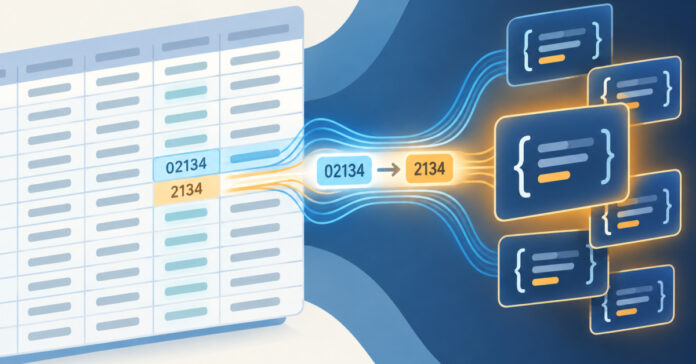
Converting a spreadsheet of customer records from CSV to JSON should be a mechanical step, but a single settings checkbox can quietly rewrite your data. If a ZIP code column reads 02134 in the original CSV and comes out as 2134 in the JSON, nothing crashed and no error appeared. The converter still produced valid, well-formed JSON. What changed is the value’s type, and with it, its meaning: 02134 identifies a neighborhood in Boston, while 2134 alone is not a valid ZIP code. This kind of csv to json leading zeros lost auto types issue happens because the tool’s default Auto types option looks at each cell and decides, cell by cell, whether it looks like a number, a boolean, or plain text. It has no way of knowing that a ZIP code column should always stay text even when every value happens to look numeric. This article walks through the site’s documented example, compares the two settings side by side, and explains why JSON syntax validation alone cannot catch the difference.
Table of Contents

The CSV to JSON Example That Turns 02134 Into 2134
The site’s CSV to JSON tool documents a small product-catalog example that is useful for seeing exactly where a leading zero disappears. The source CSV uses this header row and one data row:
sku,name,price,in_stock,zip,notes
A1042,Desk Lamp,39.90,true,02134,Ships Monday
With the tool’s default Auto types option turned on, converting that row produces this JSON object:
{
  "sku": "A1042",
  "name": "Desk Lamp",
  "price": 39.9,
  "in_stock": true,
  "zip": 2134,
  "notes": "Ships Monday"
}
Four things happened at once. sku and name stayed strings because they contain letters. price changed from the text 39.90 to the number 39.9. JSON grammar would accept 39.90 as a valid number, so the change comes from the converter turning the text into a numeric value, and a parsed number does not carry its trailing zero. in_stock changed from the text true to the actual JSON boolean true. And zip changed from 02134 to the number 2134, silently dropping the leading zero because a JSON number cannot start with a zero followed by more digits. Auto types treats every numeric-looking cell the same way, whether the column holds a price, a stock flag, or an identifier. The header name zip carries no special meaning to the converter; it only reads what the cell looks like.

Turning Auto Types Off Keeps Every Value a String
The fix for the ZIP code column is the same setting that produced the problem: Auto types. Switching it off before reconverting the identical CSV row produces this JSON object instead:
{
  "sku": "A1042",
  "name": "Desk Lamp",
  "price": "39.90",
  "in_stock": "true",
  "zip": "02134",
  "notes": "Ships Monday"
}
Every value is now a JSON string, including price and in_stock. This is a documented rule of the converter, not a separate mode reserved for ZIP codes: with Auto types off, no cell is inspected for its content, so no cell is converted to a number, boolean, or null. That means the fix is not free. If downstream code expects price to be a JSON number so it can run arithmetic on it, or expects in_stock to be a real boolean for a conditional check, turning Auto types off breaks that code just as surely as leaving it on breaks the ZIP code. The setting applies to the whole file at once, not to a single column, so the practical answer is usually one of two paths: convert with Auto types on for files where most columns are genuine numbers or booleans and fix identifier columns by hand afterward, or convert everything with Auto types off and add explicit type conversion in your own code once the JSON is loaded.

Why a Price and a ZIP Code Are Not the Same Kind of Number
The reason this setting causes trouble specifically for ZIP codes, and not for prices, comes down to what each column actually represents. A price is a quantity: something you might add, multiply, or compare, and its numeric value is the point of storing it. A ZIP code, an account number, an invoice reference, or a phone number is an identifier: a label made of digits, where the exact sequence of characters, including any leading zero, is the value itself. Converting 39.90 to the number 39.9 loses nothing that matters, because 39.9 and 39.90 represent the same quantity. Converting 02134 to the number 2134 loses the leading zero, and 2134 is a different sequence of characters than 02134, even though it looks like a smaller version of the same number.
Auto types cannot make this distinction because it only ever looks at one cell’s text, never at the column header or its meaning in your data model. Something that looks like a number gets converted whether it is a price or a ZIP code. This lines up with how CSV itself works: RFC 4180 describes CSV as comma-separated text fields with an optional header row, and it does not assign any numeric type to a field just because that field’s characters happen to be digits. In the source CSV, 02134 and 39.90 are both plain text; the type guessing happens only once you convert to JSON, and it is the converter’s Auto types option, not the CSV format itself, making that decision. If you are new to how the two formats differ more broadly, the site’s complete guide to converting CSV to JSON covers how flat CSV rows map onto JSON’s richer set of data types.
How to Check and Fix a Converted File
When you notice a ZIP code, product code, or account number has changed after conversion, work through these steps in order:
- Open the original CSV and confirm the value still has its leading zero. If the source file already says 2134 instead of 02134, no setting in the converter can recover a digit that was never there; the fix belongs upstream, in whatever exported the CSV.
- If the source is correct, reopen the CSV to JSON tool and turn off Auto types before converting that data again.
- Compare the new
zipvalue against the original CSV character by character, not just by counting digits, since a value like 021340 would still look plausible while being wrong. - Decide what the rest of your pipeline actually needs. If a script or API downstream expects
priceandin_stockto remain a number and a boolean, you can keep Auto types on for the whole file, but the JSON then already holds the number 2134, and no schema or consuming code can bring the zero back. In that case, edit the field by hand in the output so it reads"zip": "02134", copying the value from the source CSV. Otherwise, convert with Auto types off and add explicit number and boolean conversion in your own code. Padding the number back to a fixed width, such as five digits, is only a guess about what the original looked like, so use it only if you know every value has that width and you have compared the results with the source. - Paste the final JSON into the JSON Editor to check the formatting and confirm the structure reads the way you expect before you rely on it elsewhere in your project.
This checklist applies to any other identifier column, not only ZIP codes. Invoice numbers, purely numeric product SKUs, and phone numbers stored without a leading plus sign all fail the same way under Auto types, for the same reason: they look numeric to the converter even though their meaning depends on every character staying exactly as written.
Why JSON Syntax Validation Can't Catch a Lost Leading Zero
It is tempting to assume that running the output through a JSON validator would catch this kind of mistake, but that is not what syntax validation checks. The site’s JSON Validator uses the browser’s own JSON.parse to confirm that a document is well-formed JSON, and both versions of the ZIP field pass that check without complaint.
{"zip": 2134}
{"zip": "02134"}
Both lines above are syntactically valid JSON. The first stores zip as the number 2134; the second stores it as the string 02134. JSON.parse accepts either one, because RFC 8259, the specification for JSON, only requires that a number use a valid numeral format, and both objects satisfy that requirement in their own way. The specification also explains why the leading zero disappeared in the first place: RFC 8259 permits a JSON number to start with zero only when the entire integer part is the single digit 0, so a bare number written as 02134 would not even be valid JSON syntax on its own. That is exactly why the converter, once it decides a cell should become a number, has to store it as 2134 rather than 02134. There is no way to represent a numeral with a leading zero as a JSON number at all; the zero can only survive inside a string.
This is also why validation and correctness are two different checks. A JSON document can be perfectly valid and still record the wrong ZIP code, the wrong invoice number, or the wrong phone number, because validity only concerns punctuation and structure, not whether the values still mean what they meant in the source file. Catching a change like this requires comparing the converted output against the original CSV, not just running it through a parser.
Frequently asked questions
Why does Auto types change 02134 to 2134 instead of leaving it as text?
Auto types inspects each cell’s characters, not the column’s meaning. Since 02134 looks like a number, the converter stores it as the JSON number 2134. JSON numbers cannot start with a zero followed by more digits, so the leading zero cannot be kept once the value becomes a number.
Will turning off Auto types fix every numeric-looking identifier column?
Yes, but it applies to the entire file, not one column. Every price, boolean, and null-looking cell also stays a string. That is fine for identifier-heavy files, but it means numeric columns you actually wanted converted will need separate handling in your own code.
Can JSON store a number with a leading zero like 02134?
No. RFC 8259 only allows a JSON number to begin with zero when the whole integer part is the single digit 0. A bare numeral written as 02134 is not valid JSON. The only way to keep that leading zero is to store the value as the string “02134”.
Does the CSV to JSON tool let me keep just the ZIP column as text while converting prices to numbers?
The documented Auto types setting is a single option for the whole conversion, not a per-column control. To get mixed behavior, convert with the setting that suits most of your columns, then edit the remaining field in the JSON output directly.
How can I tell if my JSON already lost a leading zero?
The JSON file itself gives no warning, since a number like 2134 is completely valid on its own. You have to compare the converted value against the original CSV row, checking the exact characters rather than just confirming the file parses correctly.
Does the CSV format itself say that 02134 is a number?
No. RFC 4180 describes CSV as comma-separated fields with an optional header row and does not assign numeric types to fields that happen to contain digits. In the source file, 02134 is just text. The type change happens only when Auto types is on during the conversion to JSON.
What about price values, like 39.90 becoming 39.9 after conversion?
That is the same Auto types behavior, but it usually does not change the value’s meaning, since 39.9 and 39.90 are the same quantity. If your output needs the exact text 39.90 for display formatting, keep that field as a string rather than relying on the converted number.
Next steps
A ZIP code that turns from 02134 into 2134 during CSV to JSON conversion is not a bug in the converter; it is Auto types doing exactly what it is designed to do, guessing a type from a cell’s appearance rather than from the column’s meaning. The fix is straightforward once you know where to look: confirm the leading zero survives in the source CSV, turn Auto types off if the column is an identifier rather than a quantity, and compare the resulting JSON against the original file before you trust it. Neither the converter nor a JSON validator can tell you that a value’s meaning changed, only that its syntax is valid. Keeping that distinction in mind is the real lesson behind this csv to json leading zeros lost auto types example, and it applies to any column of digits that is a label rather than a number.
Related tools and resources on HTML Editor Online:
Sources and further reading
- https://developer.mozilla.org/en-US/docs/Web/JavaScript/Reference/Errors/JSON_bad_parse
- https://developer.mozilla.org/en-US/docs/Web/JavaScript/Reference/Global_Objects/JSON/parse
- https://www.rfc-editor.org/info/rfc8259/
- RFC 4180 – Common Format and MIME Type for Comma-Separated Values (CSV) Files
- CSV to JSON – Free Online CSV to JSON Converter | HTML Editor Online

